
AI Assistant User Interface
The AI Chat Panel is the primary interface for interacting with the Valsight AI Assistant. It provides a conversational environment where you can ask questions and receive contextual answers about your models.
The panel slides in from the side of the screen and remains available while you work. It includes a message area for viewing conversations, an input field for entering questions, and controls for rating responses.
Layout at Glance
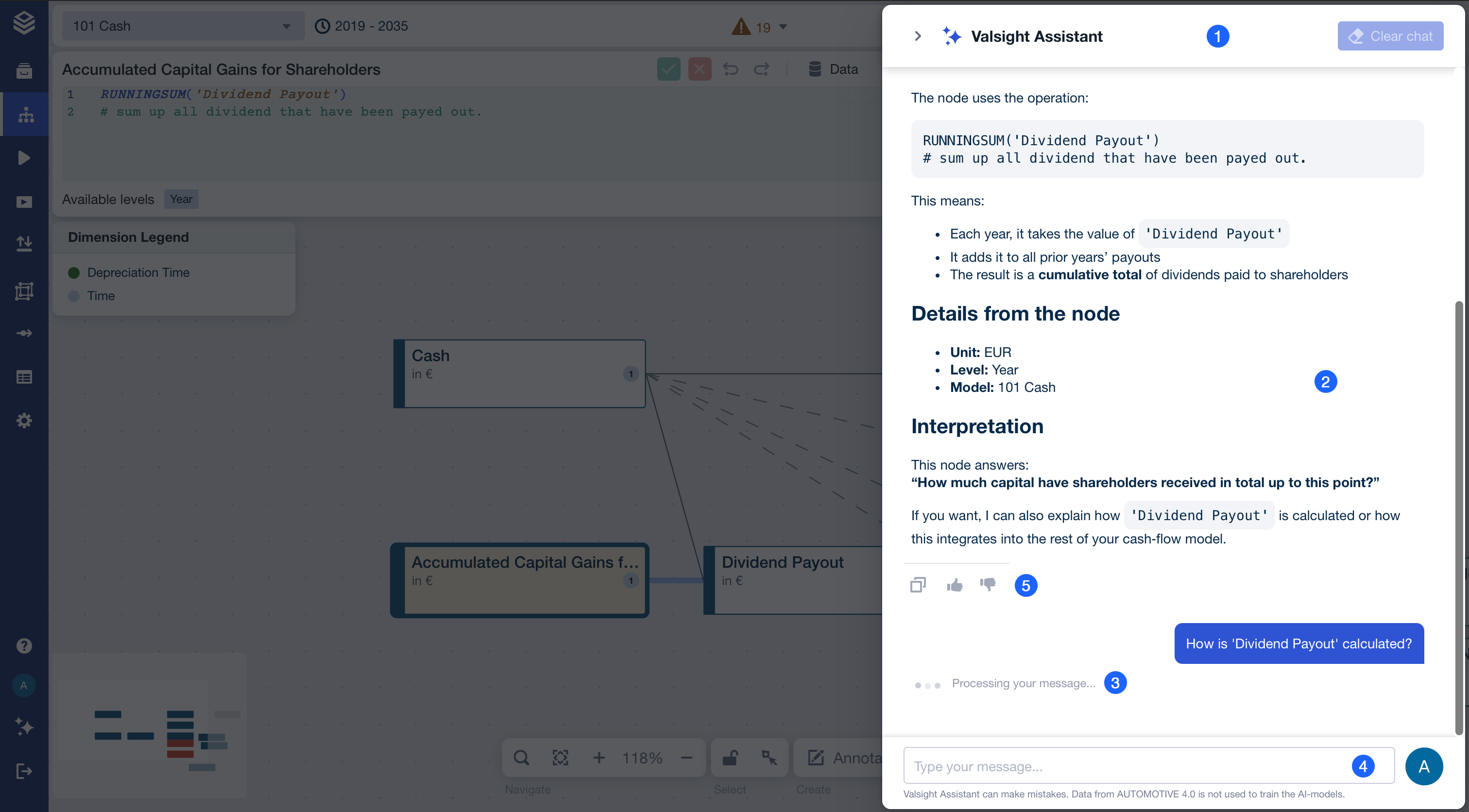
Legend
Panel Header
Message Area
Thinking Indicator
Input Field
Response Controls
Panel Header

Used for
Clearing the chat history
Closing the panel
Contains
Panel title - "AI Assistant" or similar identifier
Close button - Slides the panel out of view
Clear chat button - Erases all chat history
Behavior
When the panel is closed, your conversation is preserved for the current browser tab. Only clearing the chat or signing out will reset the conversation.
Message Area
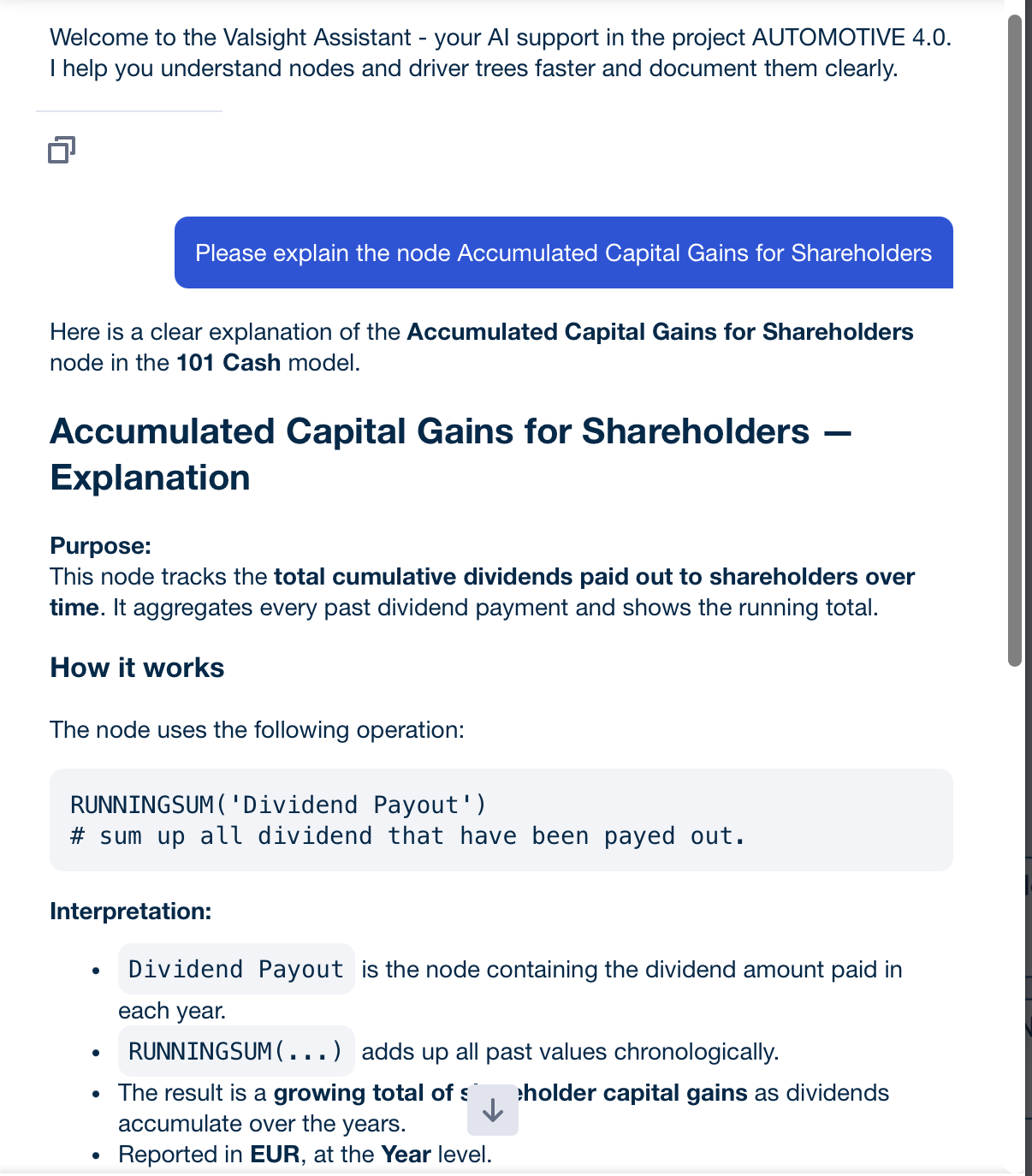
The message area displays the conversation history between you and the AI Assistant.
Used for
Viewing questions you've asked
Reading AI responses
Scrolling through conversation history
Contains
Your messages - Questions you've entered, displayed on one side
AI responses - Formatted answers with markdown support
Code blocks - Scrollable code sections that don't overflow horizontally
Response controls - Rating buttons below each AI answer
Behavior
Messages appear in chronological order, newest at the bottom
The area auto-scrolls to show the latest message
Code blocks have their own scroll bars for long content
The message area itself is scrollable for reviewing history
Thinking Indicator
The thinking indicator appears while the AI generates a response.
Used for
Showing how the AI is processing your request
Indicating that a response is being generated
Behavior
Appears immediately after you send a question
Remains visible while the response is being generated
Disappears once the response begins streaming
Responses may start appearing before the indicator fully disappears
Input Field

The input field is where you enter your questions for the AI Assistant.
Contains
Text input field - Multi-line text area for entering questions
Avatar/Send button - User avatar that turns into a submit button once a question is typed
Behavior
Input field accepts multi-line text
Press Enter or click Send to submit your question
Input is disabled while AI generates a response
Response Controls

Response controls appear below each AI answer and allow you to provide feedback.
Used for
Copying the AI response
Rating answer quality and helpfulness
Providing feedback to improve the AI
Contains
Copy button - Copy response text
Thumbs up button - Mark answer as helpful
Thumbs down button - Mark answer as unhelpful
Behavior
Controls appear once the response is fully generated
Clicking a rating button records your feedback
Button state changes to show your rating was recorded
Ratings are optional
Contextual Behavior
Panel state persistence
The AI Chat Panel maintains its state per browser tab:
Open/closed state - Panel remembers if you left it open or closed
Conversation history - Messages persist when you refresh the page
Independent tabs - Each browser tab has its own conversation
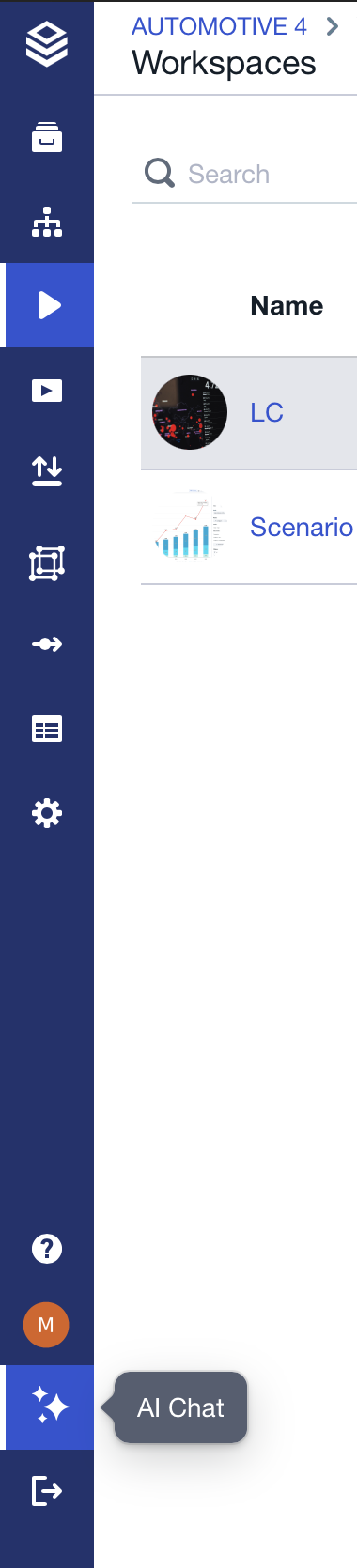
AI Assistant on the Valsight Menu Bar
The AI Assistant can always be accessed through the AI-icon located on the bottom left of the main menu. Make sure you have selected a project, otherwise it will be shown as disabled.
Related Documentation
How the Valsight AI Assistant Works - Understanding the AI’s capabilities
Frequently Asked Questions: Valsight AI Assistant - Common questions and troubleshooting