Configure Units
Project administrators with a modeling license can create, edit, and delete units within a project. Units are scoped to the project level — each project contains only the units defined for it.
Prerequisites
Project administrator role with a modeling license.
How to get there
Option A (recommended)
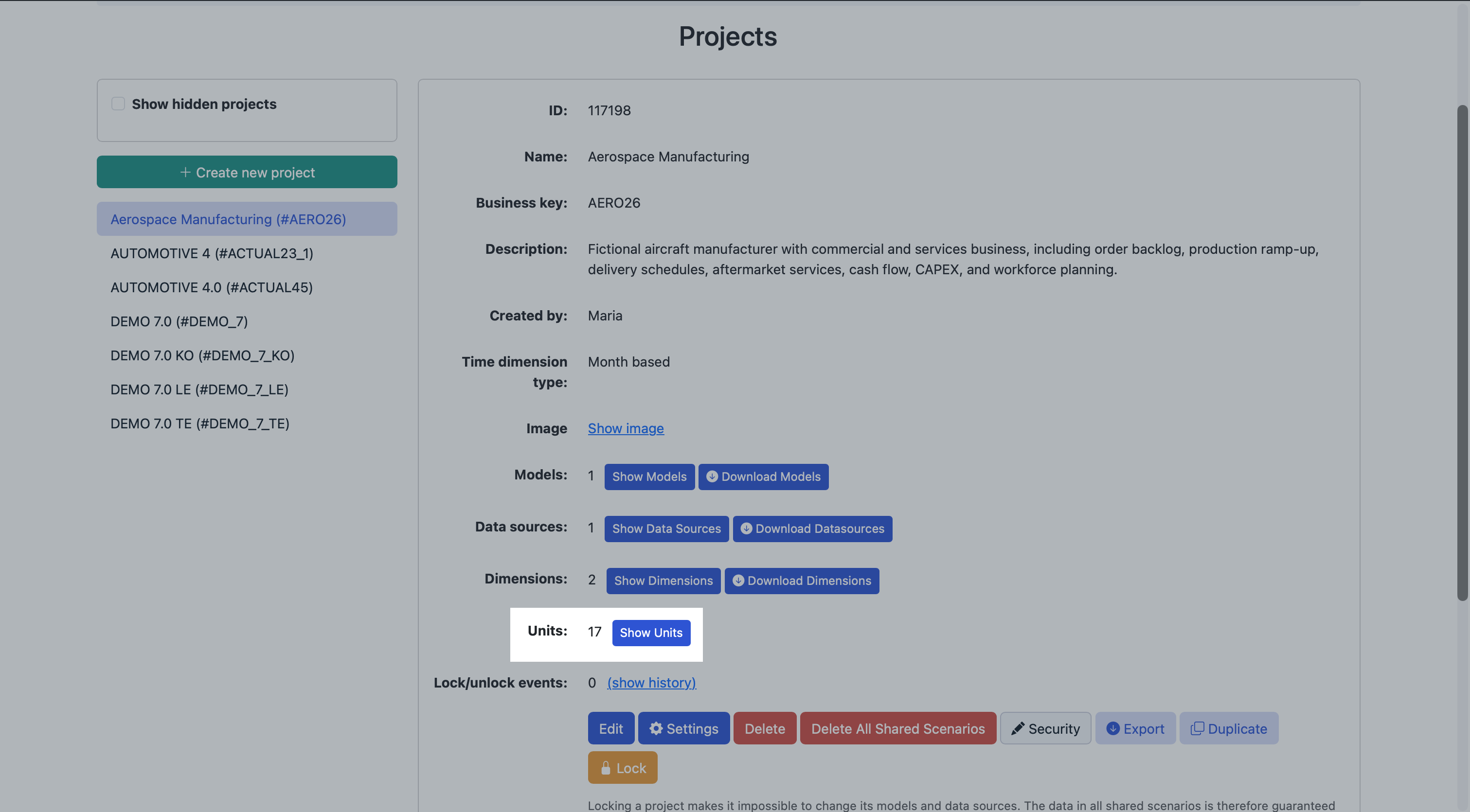
In the project overview, open the ... menu next to the project > Project Settings > Configure Units > Units.
Option B
Open Valsight Settings (cog icon in the left navigation) > Projects > select the project > Show Units > Units.
Default units
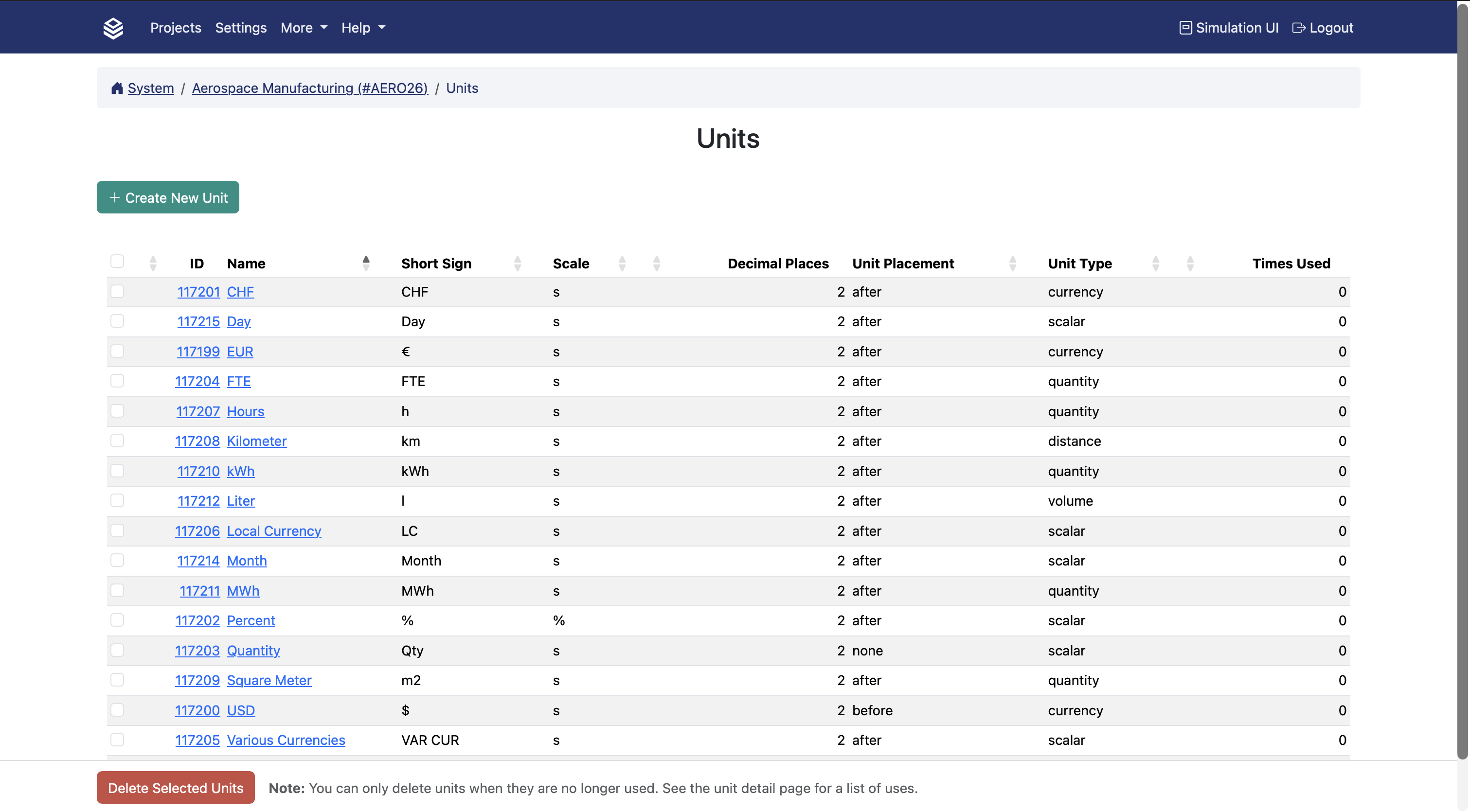
Every new project automatically includes a set of default units.
Creating a unit
On the Units page, click Add unit.
Fill in the configuration fields:
Field | Description |
|---|---|
Name | The name of the unit as shown in the inspector and dropdowns. |
Short sign | The symbol shown in tables and charts. |
Unit Placement | Position of the symbol relative to the value ( |
Scale | Default display scale (e.g. |
Decimal Places | Default number of decimal places. Can be overridden at the node, chart, or table level. |
Unit Type | Used for validation. Valsight flags invalid combinations across unit types (e.g. adding units of different types). Use scalar if unsure. |
Save the unit.
Editing a unit
Select the unit from the list, update the desired fields, and save.
Deleting a unit
A unit can only be deleted when it is no longer assigned to any node. If it is still in use, the delete option will not be available. Once unassigned, select the unit and click Delete.
Copying units across projects
When copying nodes between projects, Valsight matches units by name. If a matching unit exists in the target project it is reused; otherwise it is created automatically. No manual action is required.