
Entra / AAD Configuration
Basic Configuration
Create a new Application registration, and provide Valsight with the following information:
Application (client) ID (= clientId)
clientSecret
Directory (tenant) ID (= appId)
Your Valsight Contact will provide you with the callback URLs relevant for your instance. You must add the callback URLs to your Entra Configuration.
The structure of of callback URLs:
Corporate Edition
CODE
https://cloud.valsight.com/<tenant>/login/oauth2/code/openIdConnect
https://cloud.valsight.com/<tenant>-restore/login/oauth2/code/openIdConnect (restore endpoint)
Enterprise Edition Open Telekom Cloud
CODE
https://<tenant>.valsight.cloud/login/oauth2/code/openIdConnect
https://<tenant>-restore.valsight.cloud/login/oauth2/code/openIdConnect (restore endpoint)
Enterprise Edition Microsoft Azure
CODE
https://<tenant>.valsight.eu/login/oauth2/code/openIdConnect
https://<tenant>-restore.valsight.eu/login/oauth2/code/openIdConnect (restore endpoint)
Enterprise Edition AWS
CODE
https://<tenant>.valsight.app/login/oauth2/code/openIdConnect
https://<tenant>-restore.valsight.app/login/oauth2/code/openIdConnect (restore endpoint)
Group Configuration
To transfer groups in the OIDC Token, add the Optional Claim to the Token Configuration as shown in the screenshot.
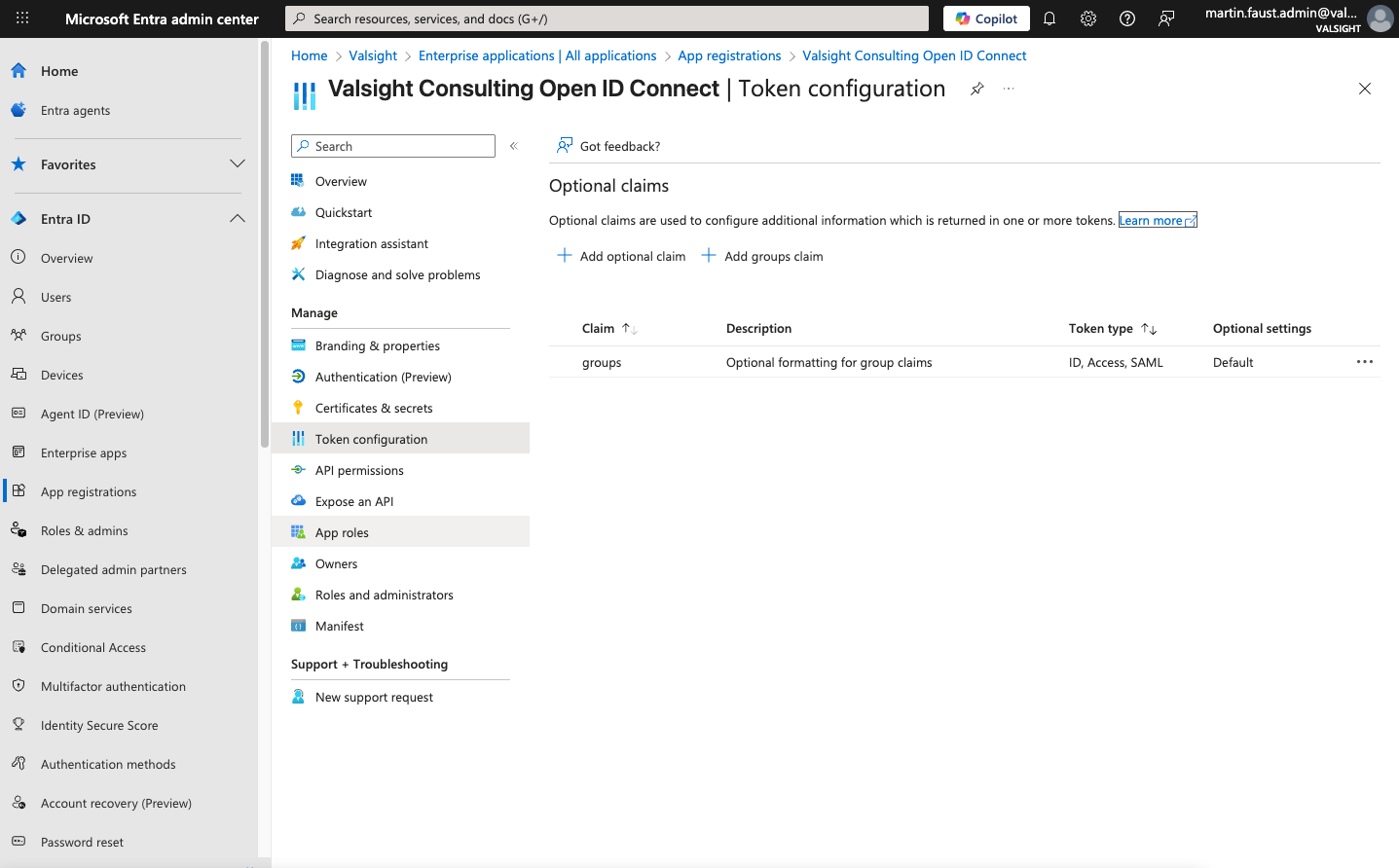
Optional Claim Configuration in MS Entra
Logout URL
If desired, Valsight can redirect users to your logout URL after pressing the Logout Button in Valsight. Provide the URL to your contact in Valsight. By default, just the Valsight Session is logged out.