
Expected Levels
Expected levels define the minimum dimensional shape for a node, allowing empty nodes to pass model validation and serve as blueprints for simulation.
Overview
By default, a node without a formula has no available levels, which causes validation errors when other nodes reference it. Expected levels let you declare what dimensions a node should have, even before data or formulas are assigned.
When to use it
When setting up simulation blueprints that will later be populated with line-item data
When empty placeholder nodes should not block model validation
When you want to document the intended shape of a node before its logic is fully defined
How it works
When you assign expected levels to a node, the system treats the node as if those dimensions are present. This means:
The node passes model validation even without data
Other nodes that reference it can resolve level expectations
The node is ready to receive line-item data in simulations
Setting expected levels
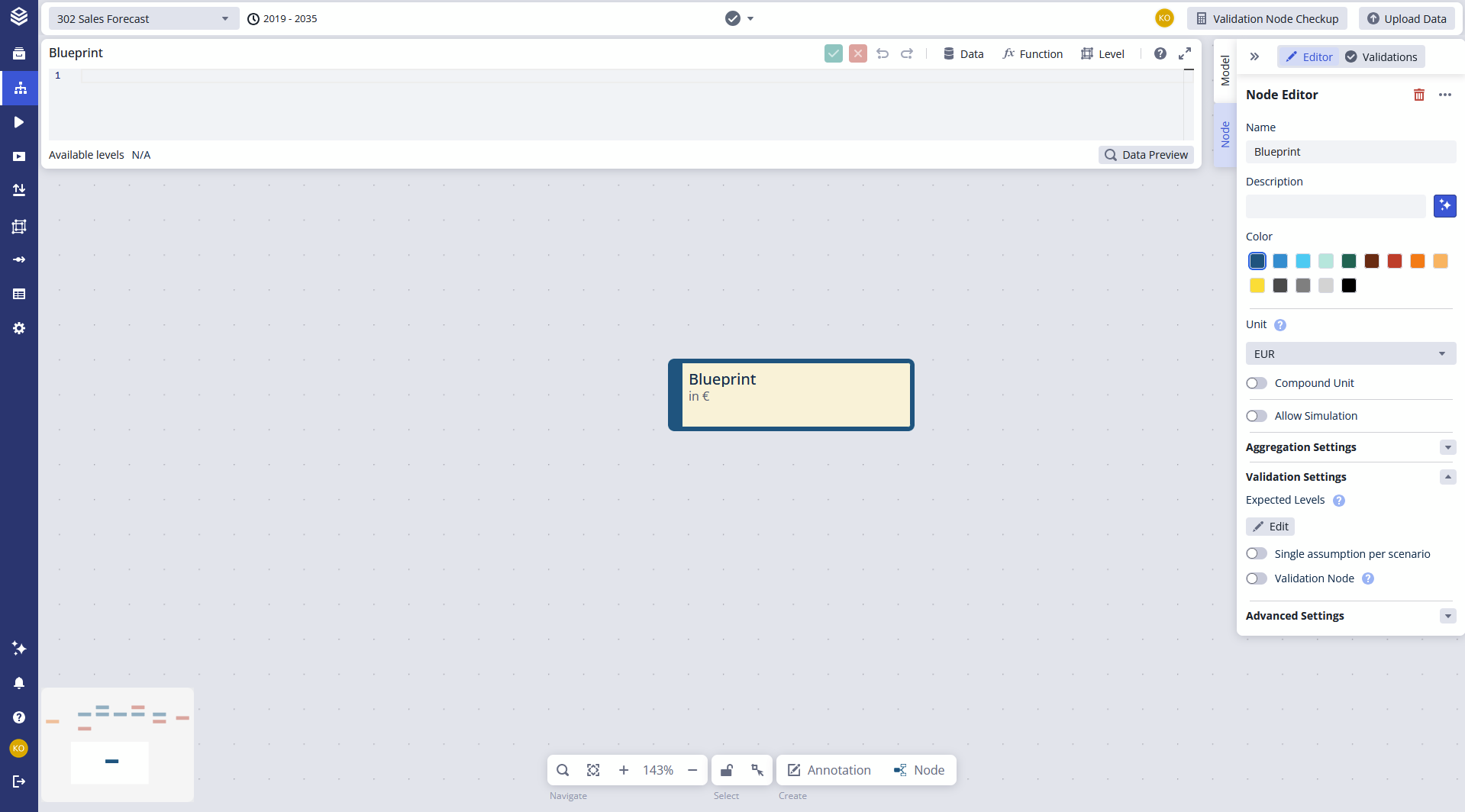
Step 1: Identify the empty node
Select the node on the canvas. Without a formula, the node has no available levels.
Step 2: Open the validation settings
In the Node Editor (right-side Context Panel), open the Validation Settings tab.
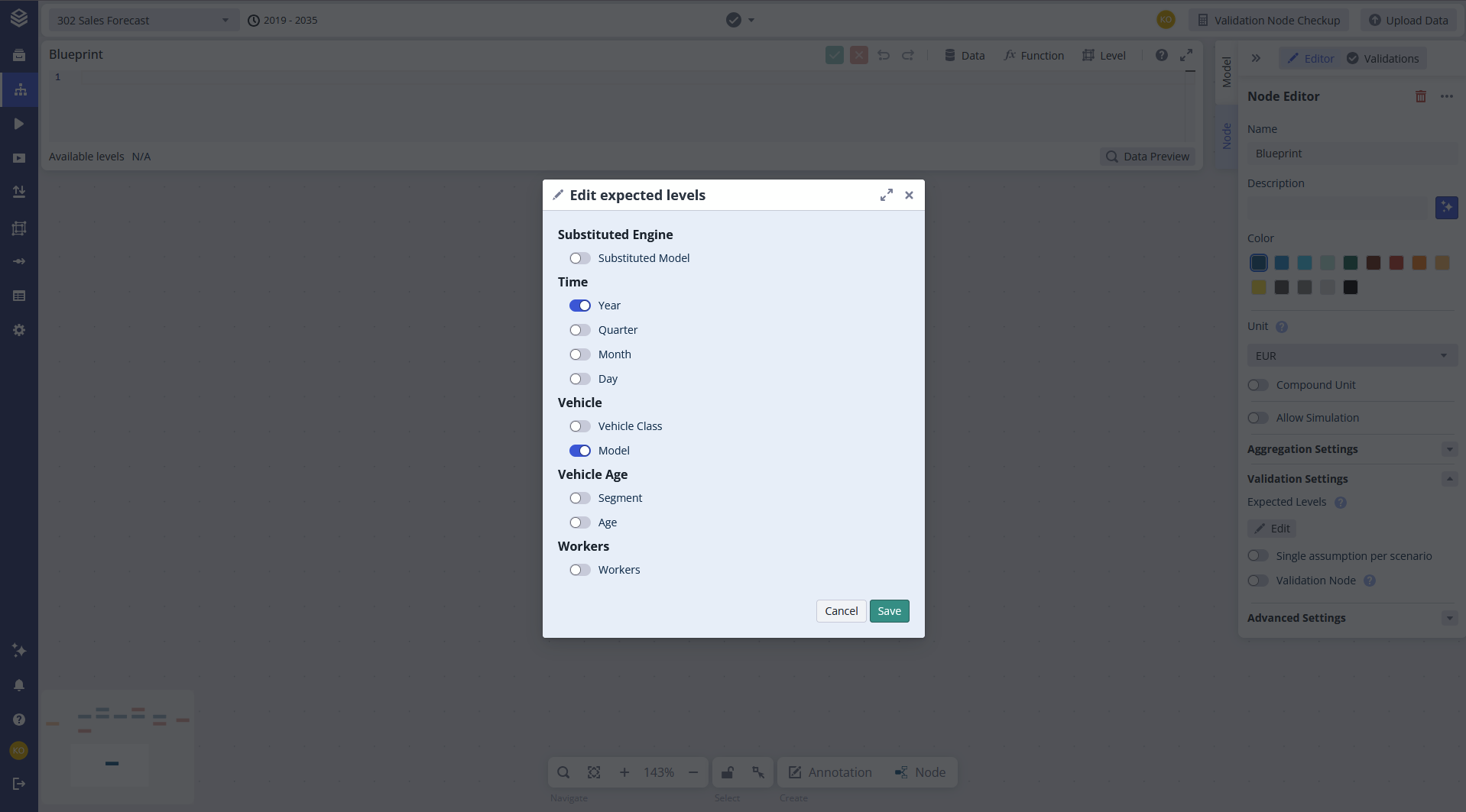
Step 3: Add expected levels
Add all levels the node should have in the future under Expected Levels.
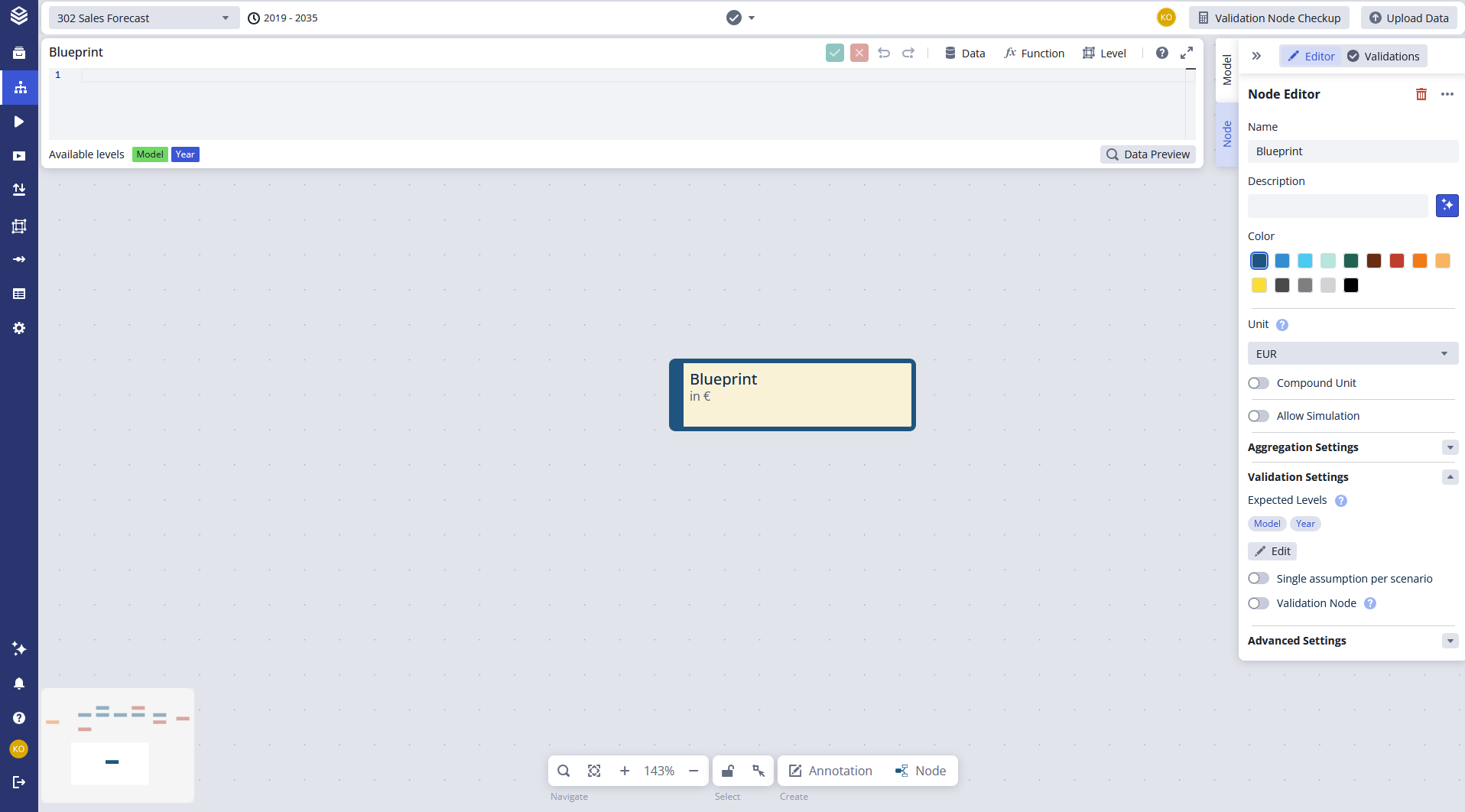
Step 4: Save and verify
After saving, the node displays the chosen levels as available levels and passes model validation.
FAQ
Does setting expected levels add actual data to the node?
No. Expected levels only declare the dimensional shape. The node remains empty until data or a formula is assigned.
Can I change expected levels later?
Yes. Update them at any time through the Validation Settings tab in the ditor.
When should I use expected levels instead of a formula?
Use expected levels when the node is intentionally empty (e.g. a simulation blueprint). Use a formula when the node should calculate or reference data.
Related documentation
Validation Nodes: define custom conditions that check model results
Model Validation: how model validation uses expected levels
Nodes: overview of node types and behavior