
Part 3: Upload and Validate Data
In this part, you upload the sample Excel file and validate that it matches the project dimensions.
Data in Valsight provides the input values that feed models and serve as the baseline for calculations, simulations, and analysis.
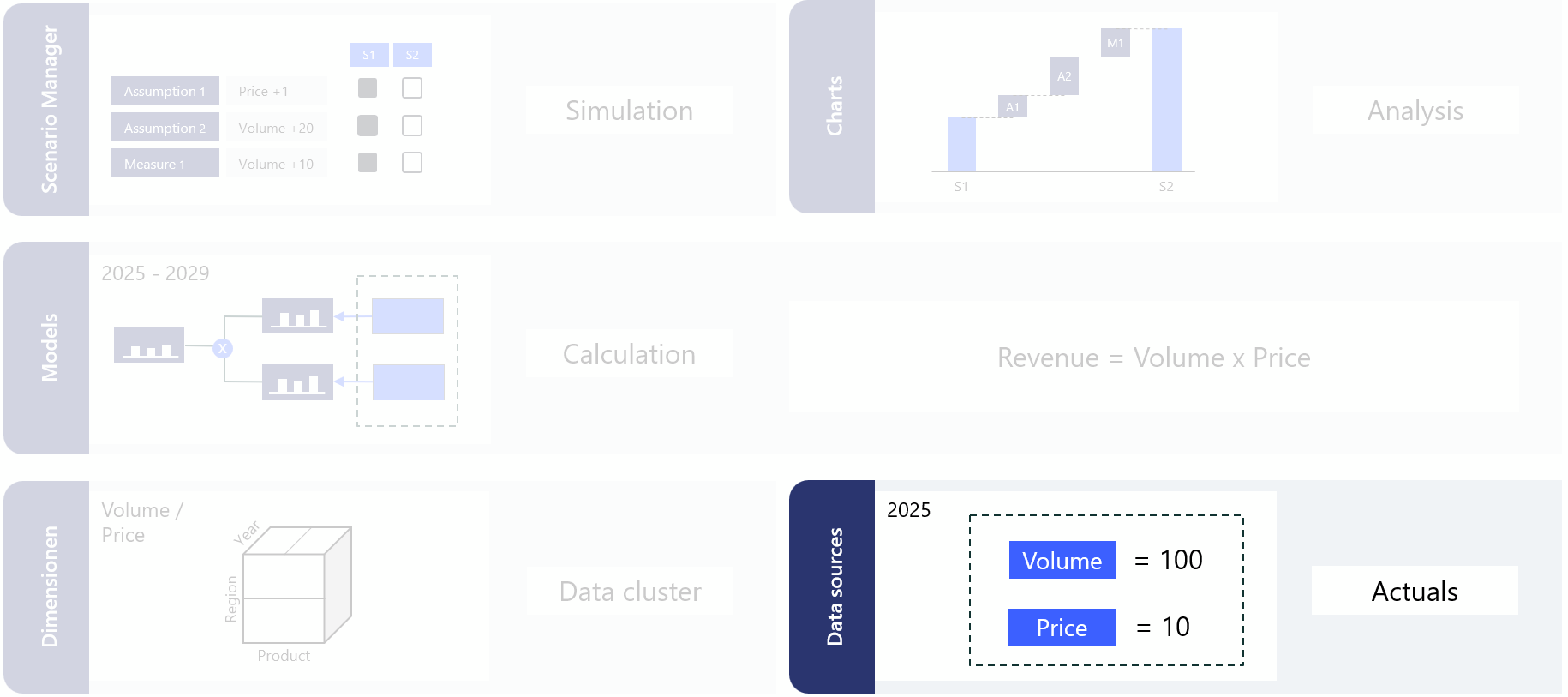
For detailed reference on any of the concepts here, see Data Import & Export.
Sample file
Use one Excel file with one worksheet named Price and Volume.
Required columns
Column | Type | Notes |
|---|---|---|
| Dimension level | System default time level. Must be named |
| Dimension level | Must match the Product level name exactly |
| Dimension level | Must match the Country level name exactly |
| Measure | Used later in model calculations |
| Measure | Used later in model calculations |
Example data
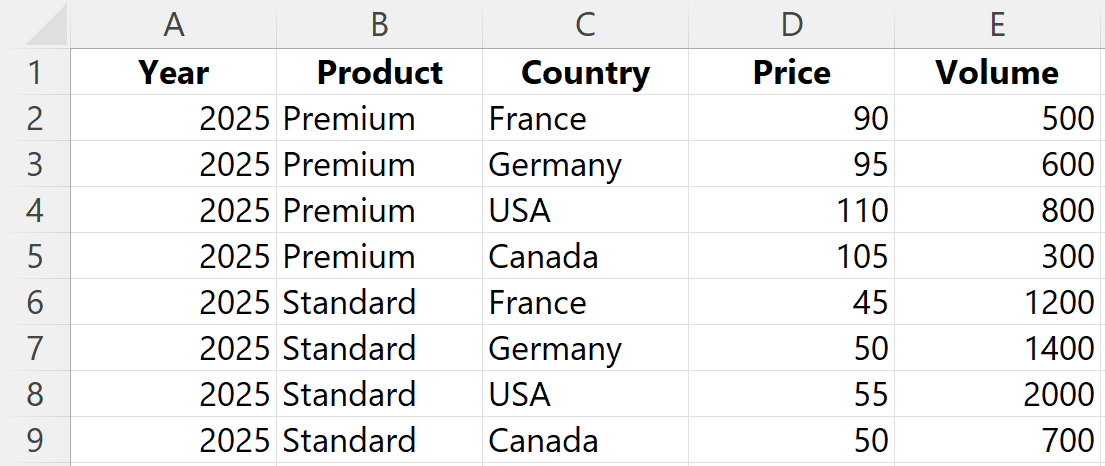
Before you upload, make sure:
Data starts in the first row
Cells are not empty
#is not used in cellsThe worksheet contains only the upload data
Watch the video guide
Step 1: Upload the data source
Open Data Sources.
Click Add to create a new data source.
Select XLSX as the file type and choose your sample file.
Enter "TutorialData" name for the data source:
Click Create Data Source.
Step 2: Validate dimensions
After upload, Valsight checks whether the values in your file match the dimensions in the project.
Click on Validate dimensions.
Check the Errors tab for any validation messages.
If level values are missing, click on the Dimension Management tab and add them.
Return to the validation result and verify that there are no errors.
Important: To add missing level values during upload, all levels must be present in the data source. For example, to fill missing values for Country, the corresponding Region values must also exist in the upload.
What you have done
Uploaded the sample file as
TutorialDataValidated that the file matches the project dimensions
Next step
Continue to Part 4: Build the Driver Model.