
Release Notes 6.16.0
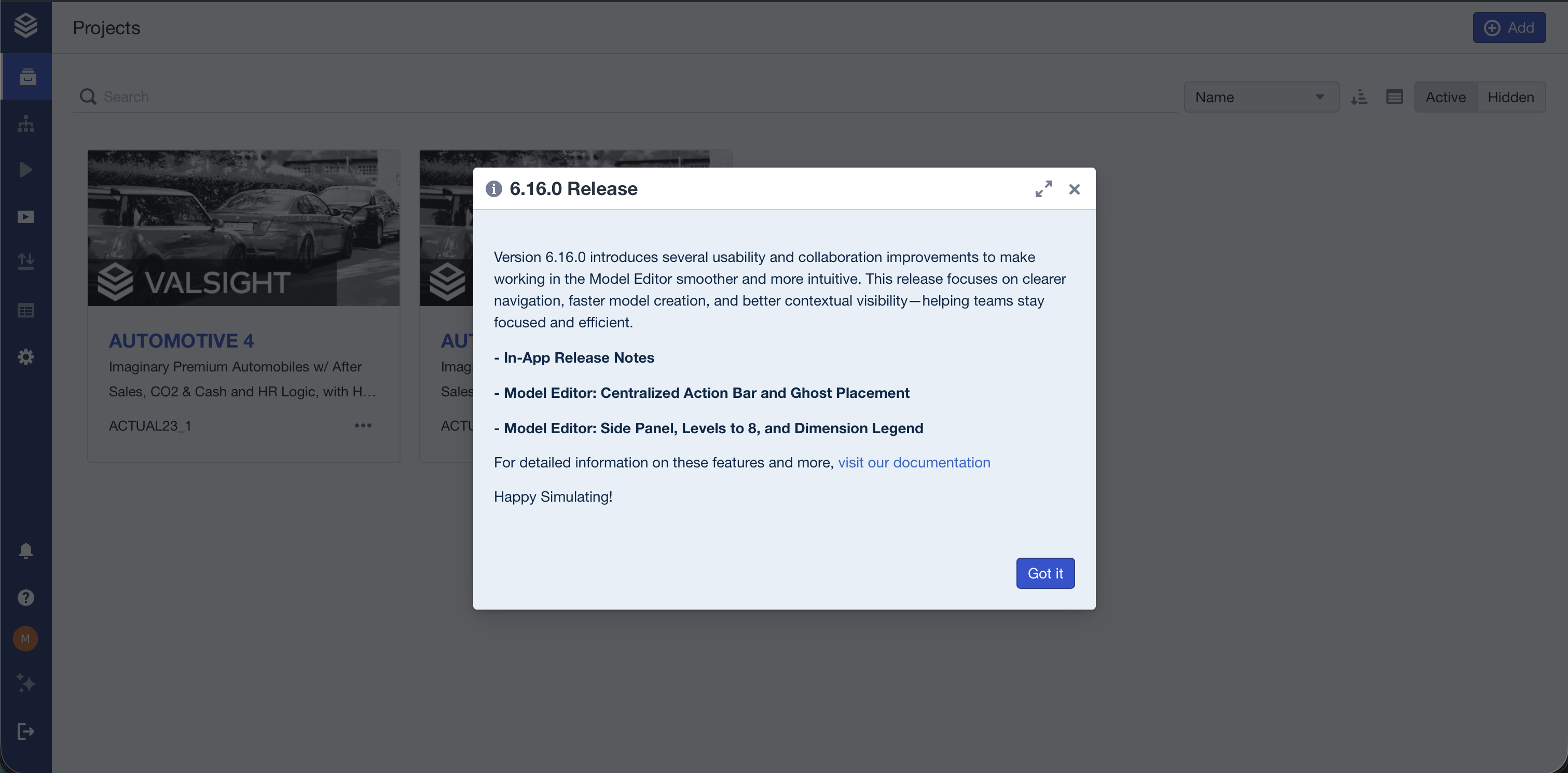
Version 6.16.0 introduces several usability and collaboration improvements to make working in the Model Editor smoother and more intuitive. This release focuses on clearer navigation, faster model creation, and better contextual visibility—helping teams stay focused and efficient.
In-App Release Notes
Model Editor: Centralized Action Bar and Ghost Placement
Model Editor: Side Panel, Levels to 8, and Dimension Legend
In-App Release Notes
Stay informed about new features and updates directly within Valsight. After logging in, users see a brief message highlighting the latest improvements. A new bell icon in the navigation bar allows you to revisit the most recent announcement at any time. This ensures everyone stays up to date with key product changes and improvements without leaving the application.
Model Editor: Centralized Action Bar and Ghost Placement
The Model Editor now includes a centralized Action Bar at the bottom of the canvas, consolidating key functions like navigation, selection, and creation into one consistent location. The bar groups controls into three clear sections—Navigate, Select, and Create—providing a more structured and efficient workflow.
In addition, a new Ghost Placement feature enables faster creation of nodes and annotations. When adding an item, a “ghost” preview follows your cursor. Click to place it, right-click or press Esc to cancel. This makes building and organizing models significantly faster and more precise.
Model Editor: Side Panel and Dimension Legend
The Model Editor now features a redesigned Side Panel with a clear Object | Model mode toggle for focused navigation and editing. Object mode provides direct access to Node, Validation, and Annotation editors, while Model mode offers quick control over layout and display options.
Nodes can now display up to eight levels, allowing for greater visibility in complex models. A new Dimension Legend—toggleable via the side panel—shows all dimensions used in the current submodel, each with its associated color. This helps users interpret level colors more easily and understand the model structure at a glance.
Other Improvements
Auto-Linking in Text Charts and Annotations
Text Charts and annotations now automatically detect and display supported hyperlinks, allowing users to link directly to documentation, how-tos, or internal resources. This improves collaboration by making references accessible directly within the workspace.
For detailed information on these features and more, visit our documentation.
Happy Simulating!