
Creating Sticky Notes & Frames
Basic Overview
The Annotations feature enhances collaboration in the Valsight Model Editor by allowing users to visually comment on, organize, and highlight areas of a model. It provides a clear and flexible way to communicate logic, context, or suggestions directly within the modeling environment.
Whether clarifying a calculation, marking key nodes, or guiding team members through a complex model structure, annotations help streamline collaboration and support model transparency.
Key Benefits
With Sticky Notes & Frames, users can:
Add contextual notes directly on the canvas using customizable sticky notes
Use colored frames to group related areas of a model
Easily toggle visibility of all annotations to reduce visual clutter
Reposition, edit, and delete annotations freely as the model evolves
Reuse annotations across models and projects via copy and paste
Example Use Case
In a car manufacturing scenario, the finance team might use a frame to highlight all nodes related to “EV production cost drivers” and add sticky notes to explain assumptions for battery pricing. This helps ensure consistency across departments reviewing the same model structure.
Setup and Usage
Recommended Preparation
To use annotations meaningfully and effectively:
Use clear, concise naming for frames and comments to enhance readability
Place annotations near relevant nodes to provide immediate visual context
Avoid excessive overlapping of annotations to maintain a clean canvas
For multi-user environments, establish internal guidelines for color usage or note structure
Consider using visibility toggles during presentations or walkthroughs to focus the view
Creating Sticky Notes & Frames
To create a sticky note or frame:
Open the Model Editor
Click “Add Annotation” (next to the “Add Node” button)
Choose one of the following options:
Add Sticky Note
Add Frame
Sticky Note Setup
A dialog titled “Add Sticky Note” opens
Enter text into the formatting-enabled field
Choose a color using the color picker
Click Save, then place the note anywhere on the canvas
Notes display a scrollbar if the text exceeds the field height
Selected notes show a dotted border and can be moved freely
Frame Setup
A dialog titled “Add Frame” opens
Enter a name (e.g., “Revenue Drivers”)
Choose a frame color
(Optional) Enable background color using the checkbox
Click Save, then draw a rectangle around the relevant area
Frames display the title and can be resized, repositioned, or edited later
Interacting with Annotations
Click any annotation to select it and open its settings in the Editor Panel (top right)
For sticky notes:
Click “Edit Text” to modify content
For frames:
Edit title, color, or background
To remove an annotation, click the trash icon in the object or editor panel
To manage visibility:
Use the toggle button next to the zoom controls to show/hide all annotations
This toggle is user-specific and does not affect other users
Managing, Configuration and Limitations
Supported Configuration
Annotations include:
Sticky Notes with text formatting and color
Frames with title, border, and optional background color
Annotations can be moved, copied, edited, deleted, or hidden
Annotations are compatible with keyboard and mouse input, supporting drag-and-drop positioning
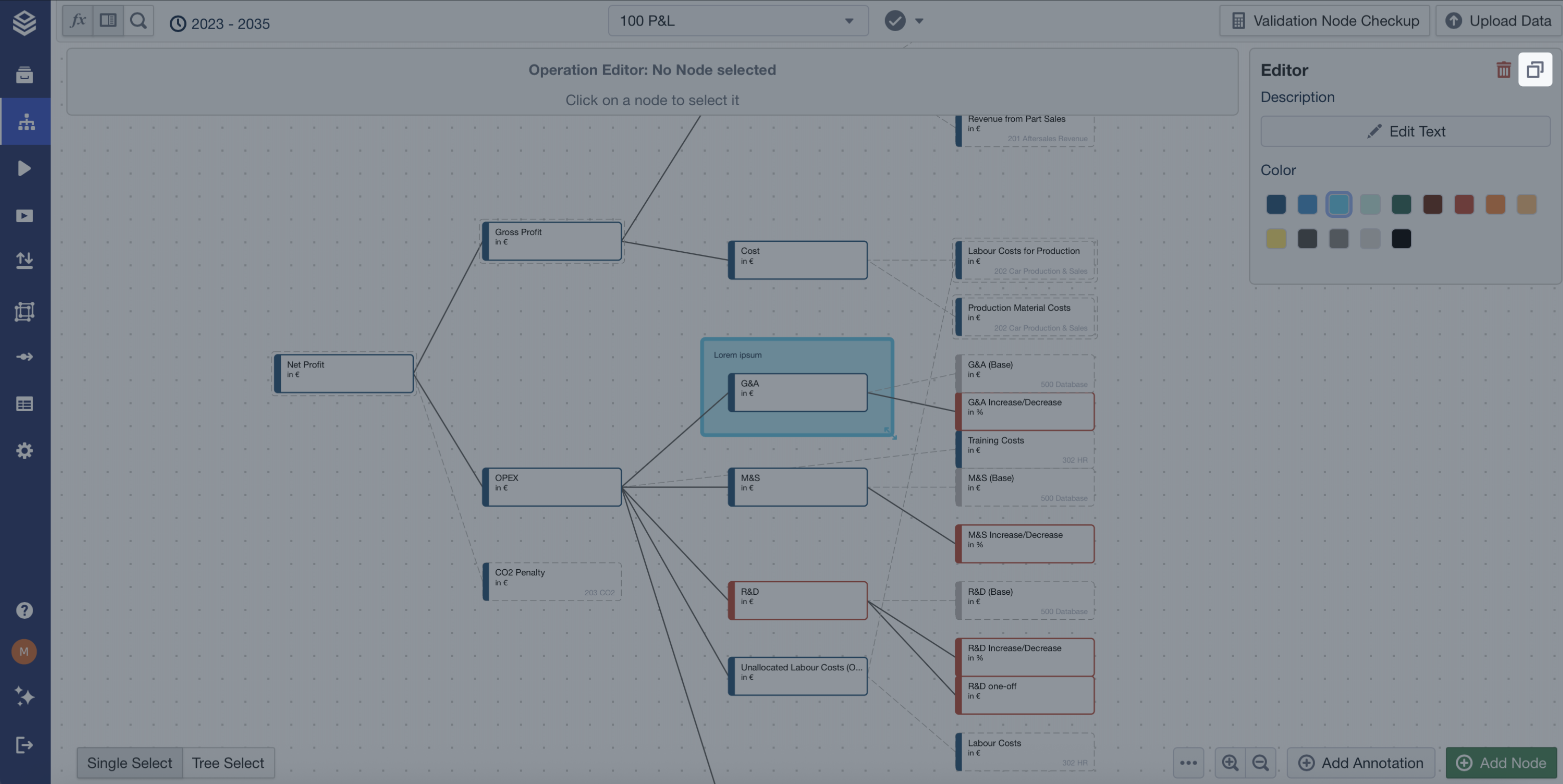
Copy & paste functionality is supported:
Within the same model
Across different models
Across projects
Error Handling and System Limitations
Overlapping or excessive annotations may lead to visual clutter but do not affect model performance
If an annotation cannot be pasted (e.g., incompatible data), a clear error message is shown
Long sticky notes will automatically scroll rather than resize
Annotations are purely visual aids and do not affect the model’s logic or calculations
Data Synchronization and Integration
All annotations are stored per model and saved with the model state
Visibility settings are stored per user, ensuring a personalized experience
No special rights are required—any user with model edit access can use and manage annotations
Annotations are preserved during project duplication, import, or export
Summary
Sticky Notes & Frames support clearer communication, better documentation, and more efficient teamwork within the Model Editor. With rich formatting, intuitive placement, and full copy/paste support, they allow users to:
Provide helpful comments directly in the canvas
Visually organize and explain model logic
Reuse and manage annotations across models
Reduce complexity by toggling visibility on demand
This feature helps make even the most complex models more accessible, navigable, and team-friendly - essential for transparent and collaborative modelling.