
Line-Item Filters
Filter Name | Type | Persisted | Synchronised | |
|---|---|---|---|---|
After Sharing | Across Users | |||
Saved project-wide | For entire workspace and all Line-Item views. | |||
Saved project-wide | For entire workspace in change and results view. | |||
Not saved | Across change and results view. | |||
1. Line-Item Filter (Details)

Permanently filters a Line-Item to the selected criteria. Has an effect on following calculations. Is saved an effects all users. When sharing a scenario, only the values which match the filter criteria are included.
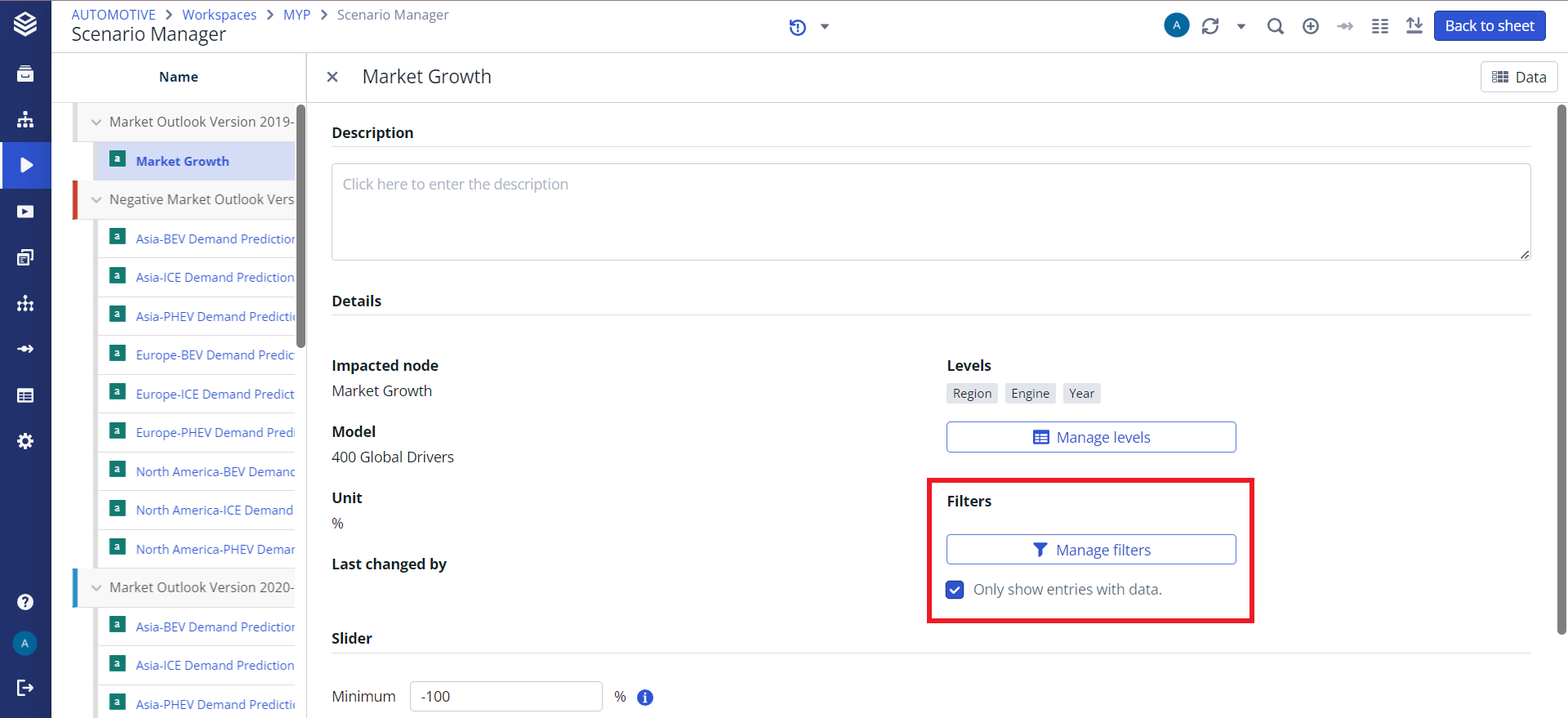
The “Manage Filters” dialog relates to filters set on the levels that affect the view onto the data of a line-item. The filters set here are permanent and effect all calculations by this Line-Item.
To set a filter on one of the levels in the line-item, click on the level first and then adjust the filters to your desired view. To set filters on a level, it must be in the dimensionality first.
2. Line-Item Change View Filter (Edit)
Permanently filters a Line-Items table. Is persisted and shared across users. Does not have an effect on calculations. Has no effect when sharing a scenario.
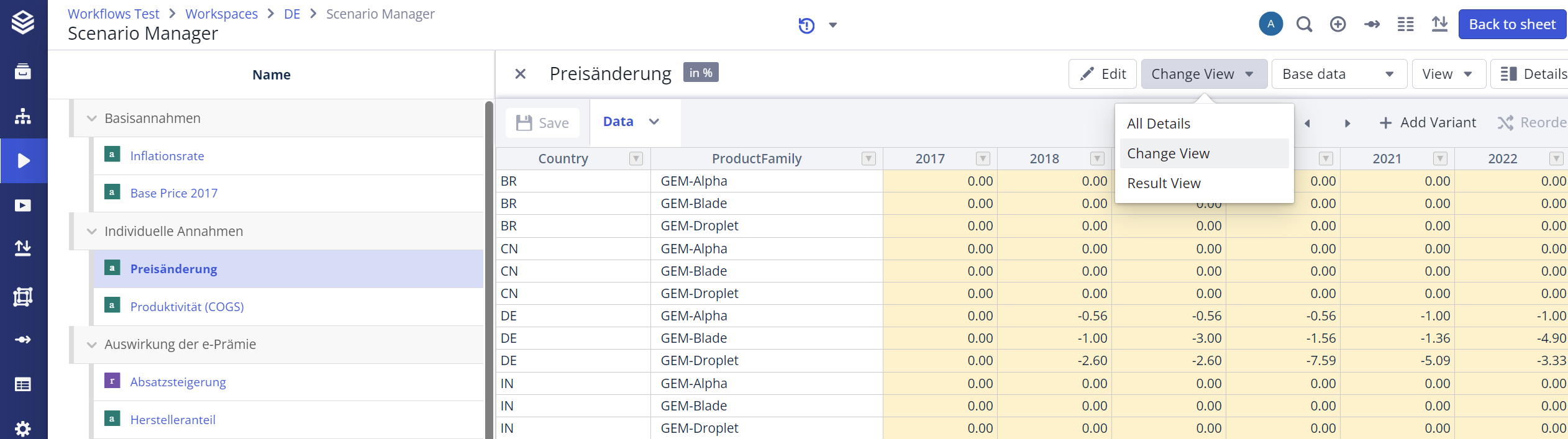
To create a table view that is filtered and displayed in a user-defined manner, select the View dropdown and change it from 'All Details' to 'Change View'. This is a custom view that can be flexibly defined and changed. It is persisted and saved for all users. This is ideal for preparing an input table for a simple view, but does not affect any calculations or completely exclude any values from this item.
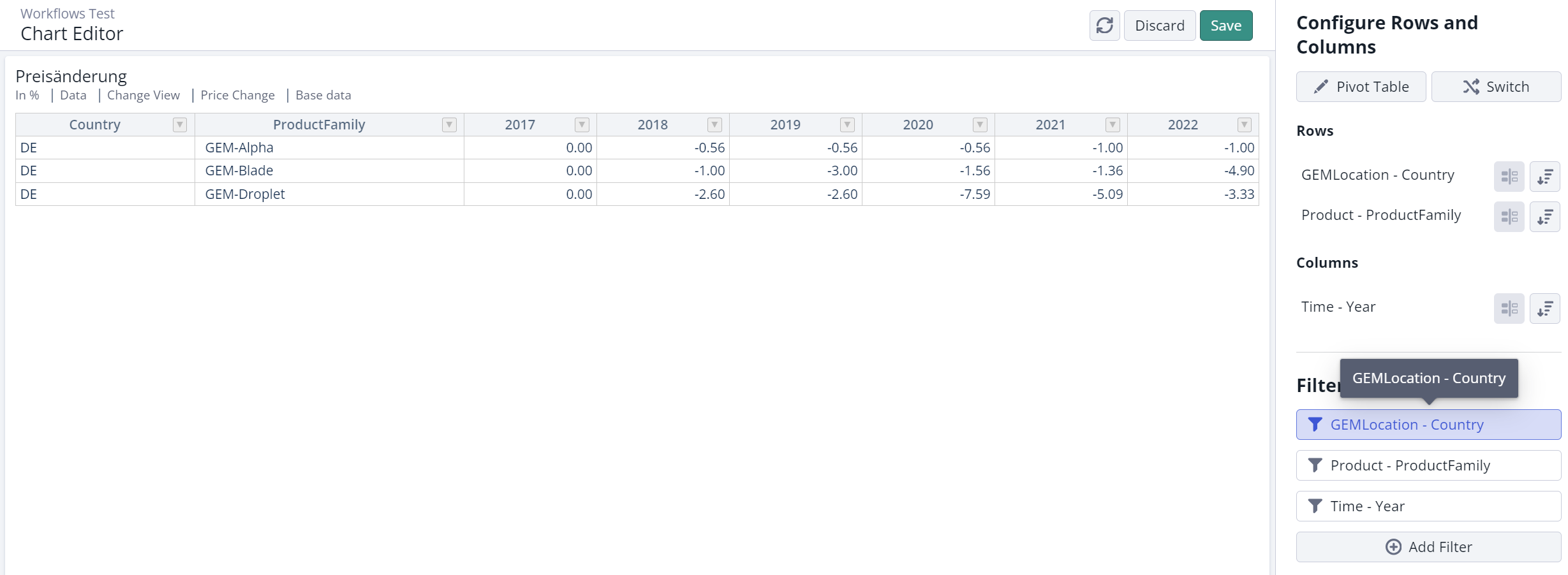
Now click on ‘Edit' to edit the view. Select 'Filter' and choose the criteria by which you wish to filter the table. Click on 'Save’ to persist this view for every user in this workspace.
3. Table View Filters (Column)
Filters the table view for you personally. Has no effect on calculations or other users. Is not persisted or saved in any way. It is, however, synchronized across the change and results view. Has no effect when sharing a scenario.

Filter by specific value
This filter is best used if you wish to temporarily filter a Line-Item table for an easier data input or analysis. It is neither persisted nor shared with other users. You can filter the Line-Item table using the column filters. You can either filter by available values or by a user-defined condition. From Valsight version 6.3 onwards, filters are synchronized across different views. This means the rows will remain filtered according to your settings, even when switching between different views like results, change, or standard.
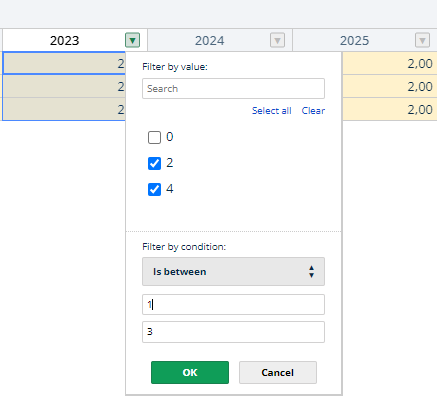
Filter by condition
Line-Item Filters are synchronized across change and results view.
Copy and Paste Support for Percentages and Thousand Separators
Copying and pasting values from external sources like Excel into Valsight is supported with the following behaviour and helpers:
Flexible Input Parsing: Users can now paste percentages, numbers with thousand separators, or values with symbols (e.g., %, €, $) without encountering errors. These characters are automatically ignored at the beginning or end of the input.
Language-Aware Thousand Separators: Thousand separators (e.g.,
,for English or.for German) are now supported and correctly interpreted based on the Valsight language settings.Invalid Input Handling: If invalid values are detected (e.g.,
123test456), an error message will notify users with a detailed explanation and a link to the documentation for correct formatting guidance.