
Validation Warnings Displayed Directly on Nodes
Basic Overview
Validation Warnings are now displayed directly on nodes in the Model Editor, making it faster and easier to identify issues as you work. Instead of relying solely on the centralized validation panel, you can now spot and resolve problems directly at the source—right where they occur.
This improves model transparency, accelerates troubleshooting, and supports cleaner, more maintainable models for collaborative teams.
Key Benefits
Instantly locate nodes affected by validation warnings
Click warning icons to view relevant details for that specific node
Keep working without switching back and forth to the central validation panel
Customizable visibility options
Example Use Case
A team member is reviewing a financial model and notices that certain calculation nodes aren’t returning expected values. With inline validation icons enabled, they quickly identify which nodes contain structural or configuration issues—without ever opening the centralized warning view.
Setup and Usage
Enabling Validation Icons
Validation icons are turned off by default. To enable or disable them manually:
Open a model in the Model Editor
Navigate to the Model tab at top-right corner of the screen
Activate the “Show Validations” toggle (under the Node-Display section)
This setting is saved per user and project view, so your preferences persist when you return.
What You’ll See
⚠️ A warning icon appears in the top-right corner of a node if it contains one or more validation warnings
Clicking the icon opens the tab with all relevant warnings for that specific node
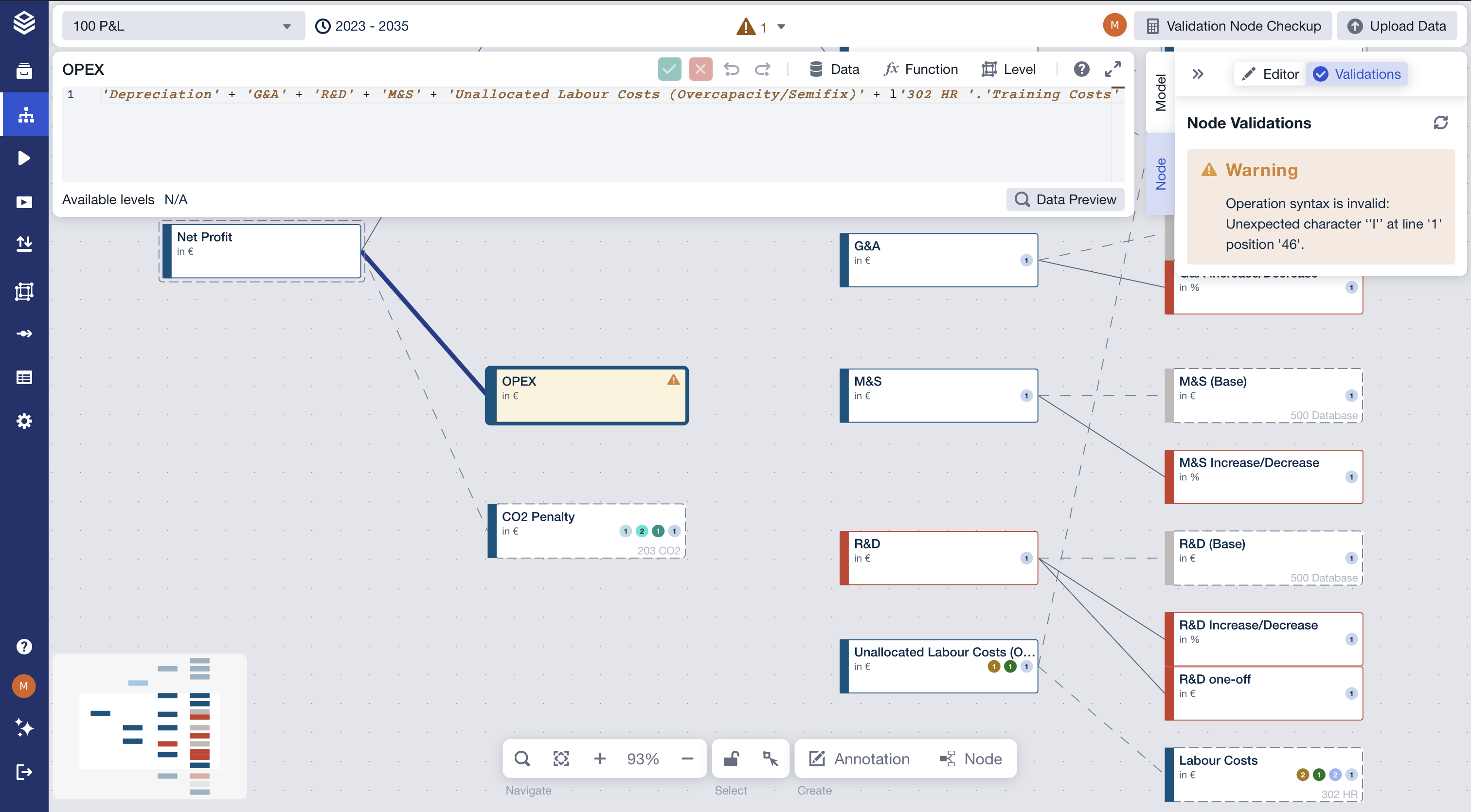
You can continue editing, copying, or moving the node while the dialog is open.
Managing, Configuration & Limitations
Supported Behavior
Active warnings from the centralized validation list are shown inline
The same warning logic applies—this is just a new way of surfacing them visually
Warning icons are shown just to the user who enabled them