
Model Editor UI
Overview
The Model Editor is the central screen for building and maintaining models in Valsight.
The screen is organized around one core principle: the canvas is the source of selection, and the surrounding areas update to reflect what is currently selected. The header and action bar remain stable and provide global actions and navigation, while the Function Editor and Context Panel change depending on whether a node, an annotation or nothing is selected.
It includes:
A global header for model-wide context and actions
A canvas where the model graph is displayed
An action bar at the bottom for navigation, selection and creation
A function editor for node calculations
A right-side context panel for model, node and annotation configuration
Layout at a Glance
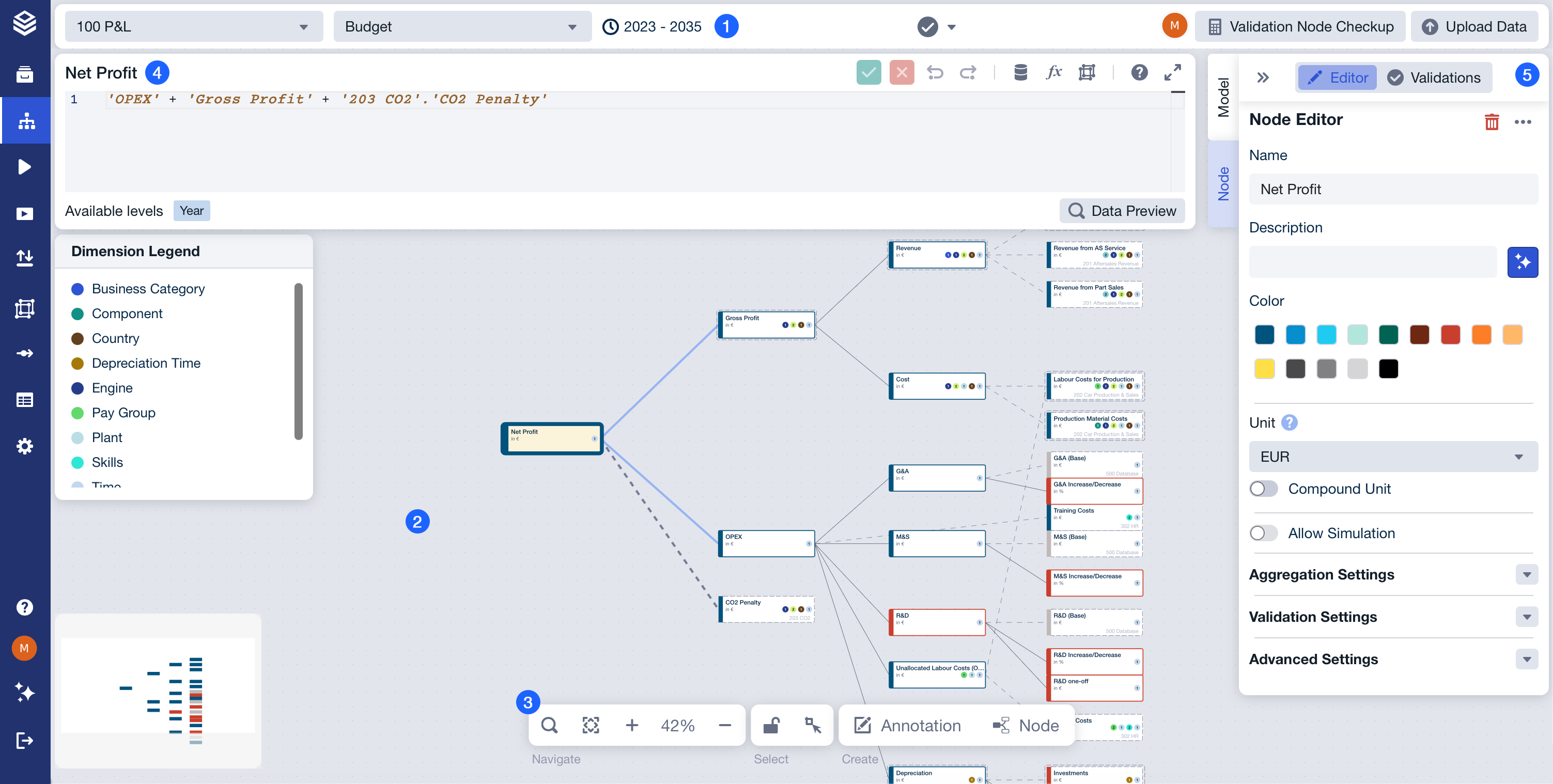
Legend
Header

The header provides global context and actions for the current model. It remains visible while you work on the canvas.
Used for
Changing the active model context
Providing model-wide actions and status indicators
Contains
Model selector to switch between models
Project horizon indicator
Validation status and validation-related actions
Collaboration indicators (for example, active users)
Global actions (for example, validating the model or uploading data)
Canvas
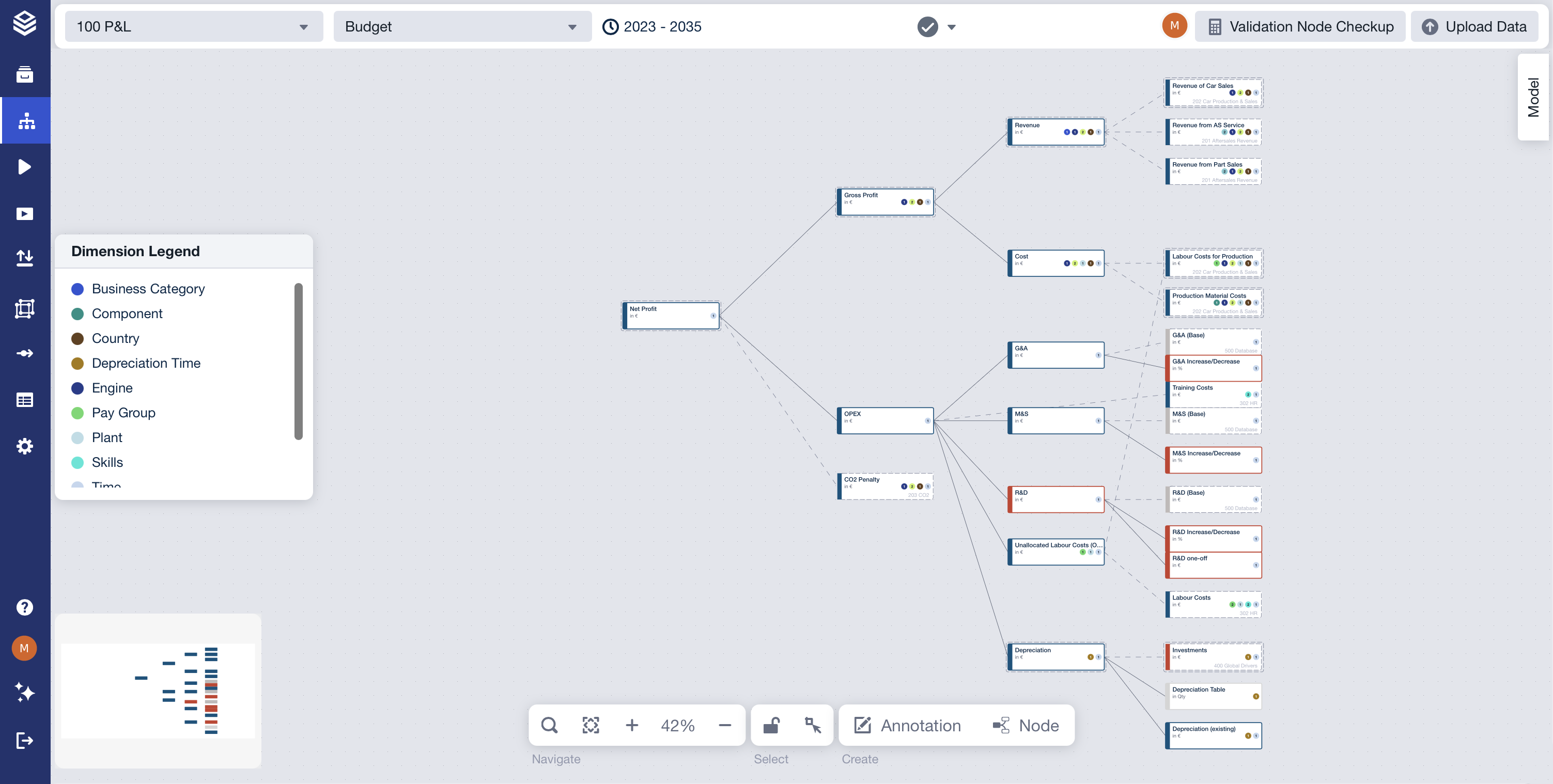
The canvas is the main area where your model is displayed as a node graph. It shows nodes, connections, and annotations.
Used for
Visualizing and arranging model structure
Inspecting how nodes and drivers relate to each other
Contains
Nodes representing metrics, drivers, and calculations
Connectors representing dependencies between nodes
Annotations used to document structure and intent
Optional overlays
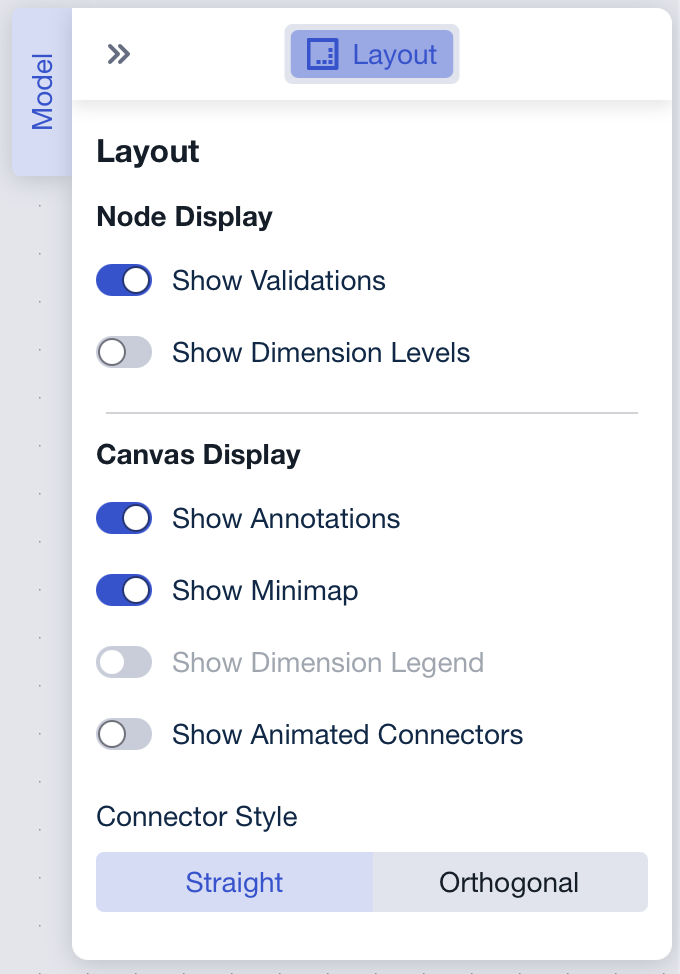
The canvas supports optional overlays that can be shown or hidden in the Model section of the Context Panel:
Minimap: Provides a compact overview of the full model layout
Dimension legend: Shows which dimensions are used by nodes in the current model
Action Bar

The action bar is a persistent control strip at the bottom of the Model Editor. It provides quick access to navigation, selection and creation actions.
Used for
Navigating the model view
Controlling selection and layout behavior
Creating new elements on the canvas
Contains
Navigation controls such as search, fit-to-view, and zoom
Selection controls such as layout lock and selection mode
Creation controls for adding nodes or annotations
Function Editor

The Function Editor is the area used to view and define the calculation logic of a selected node. It is displayed in the Model Editor below the header when a node is selected.
Used for
Viewing and editing a node’s calculation expression
Reviewing node-specific context relevant to the calculation
Contains
Node name and contextual metadata
Controls to save or discard changes
Undo and redo controls
Shortcut buttons for connecting data or inserting functions and levels
Access to data preview for the selected node
A display of available levels for the selected node
Contextual behavior
Updates when a different node is selected
Not shown when no node is selected or when an annotation is selected
Context Panel
Model Tab
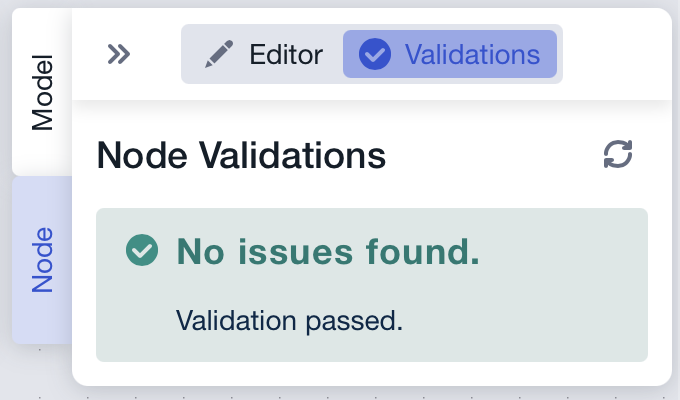
Node Tab
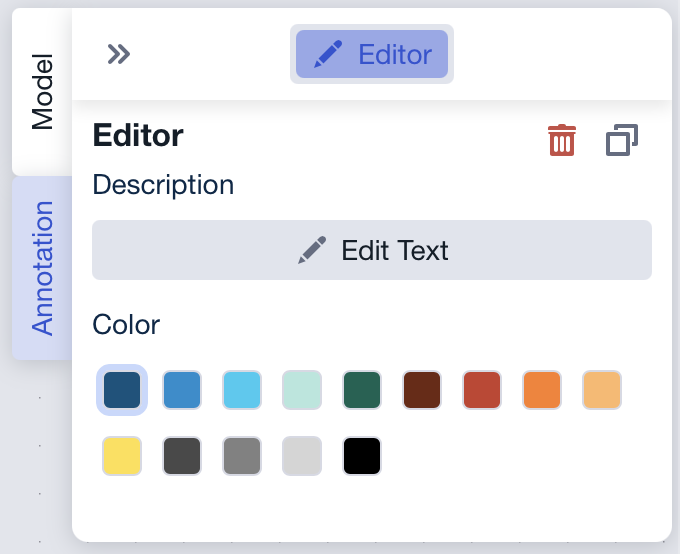
Annotation Tab
The Context Panel is the right-side configuration area of the Model Editor. It displays contextual settings and controls based on the current selection.
Used for
Reviewing and adjusting settings related to the current context (model, node, or annotation)
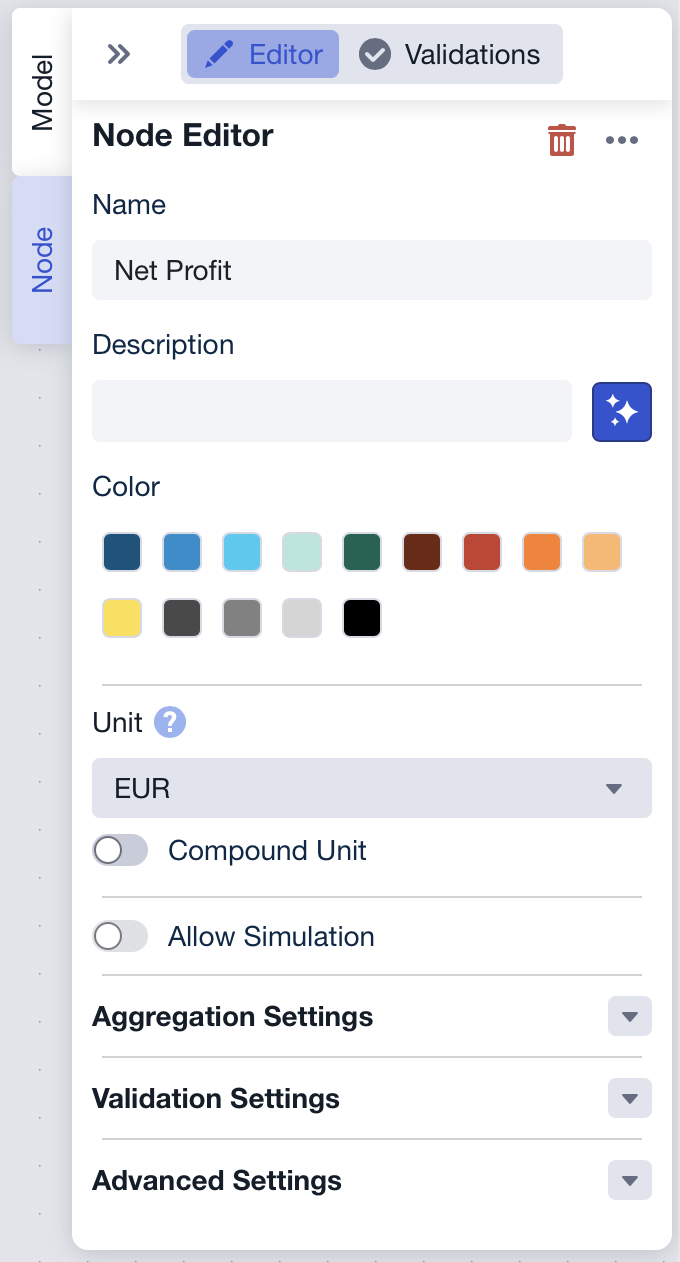
Viewing node validations
Contains
Model mode: Model-level layout and display settings when no element is selected
Node mode: Node configuration and a validations section when a node is selected
Annotation mode: Annotation configuration when an annotation is selected