
Sliders
Sliders can be displayed in tiles on a worksheet. This allows faster and more focused simulations as sliders can be separately added for each line-item or with all relevant sliders in one tile.
To add a slider tile to your worksheet, add a chart to your workspace and select “Slider” in the chart type selection.
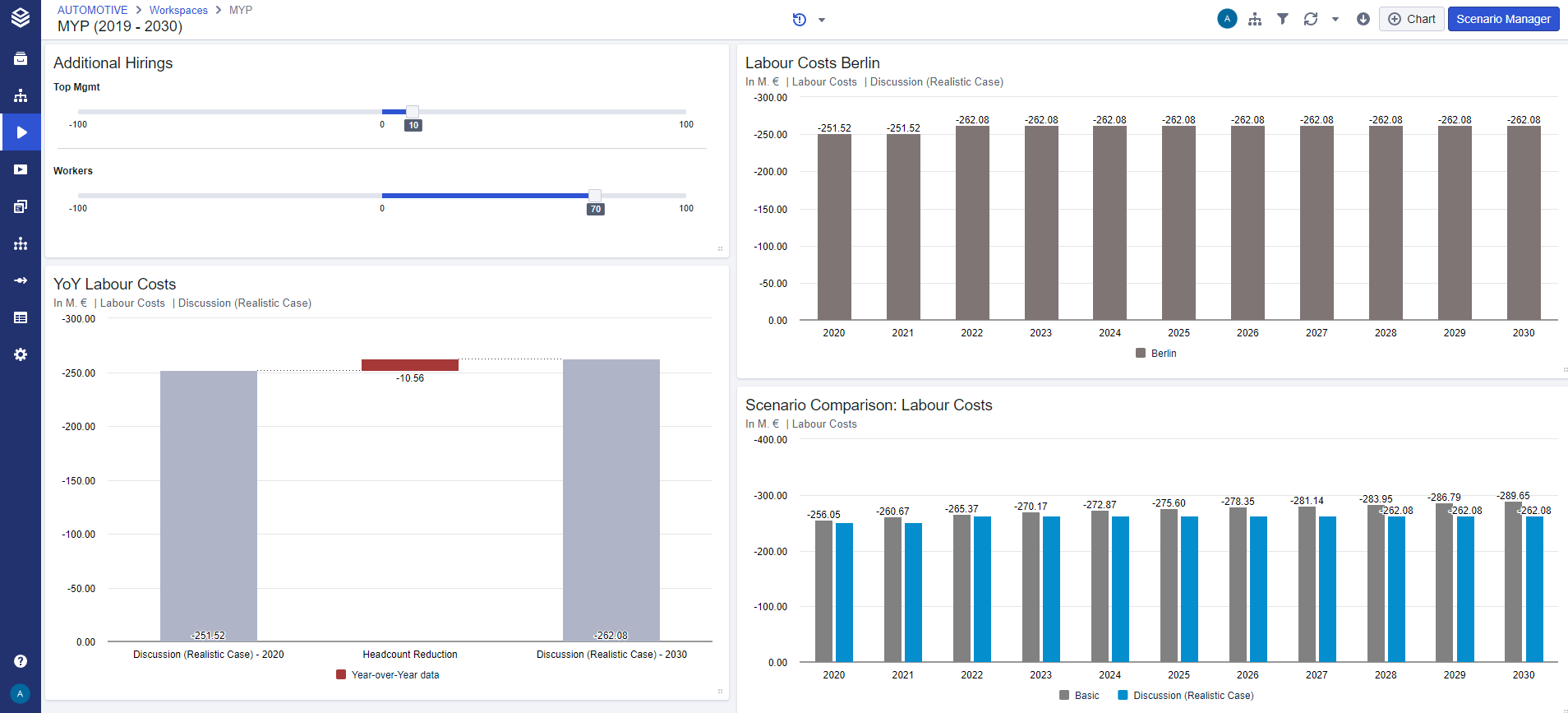
Settings for Sliders in Tiles
Via the edit button, the line-items for which sliders should be shown can be adjusted
Via the settings, the slider tiles can be renamed, moved and duplicated or deleted
Via the settings, the before/after column can be turned on for the slider tiles, visualising the impact of the slider value
Resetting sliders
Resetting all slides in a tile is possible via the settings
Resetting a single slider is possible via the reset button on the right of each slider

Limitations
Sliders cannot be duplicated or moved to other workspaces
Sliders cannot be used for Line-Items that have more than one Variant.
Related documentation
Input Tables are another possibility to simulate live on the dashboard
Sliders can also be configured as part of the Scenario Manager