Model Validation
Verify that your model's formulas follow correct syntax and are compatible with connected base data.
Overview
The Model Editor provides a validation function that checks whether your node formulas and connected data are correct and compatible. Use it to detect syntax errors, broken references, or data mismatches before they affect downstream results.
How it works
Model validation examines all nodes in the current model and checks:
Formula syntax is correct
Node references resolve to existing nodes
Connected base data is compatible with the model structure
If issues are found, the validation identifies the specific node(s) and the nature of each error.
Model validation does not check whether calculation results are logically correct. Use Validation Nodes for result-level checks.
Running a model validation
Open your model in the Model Editor.
Click the validation icon in the header bar.
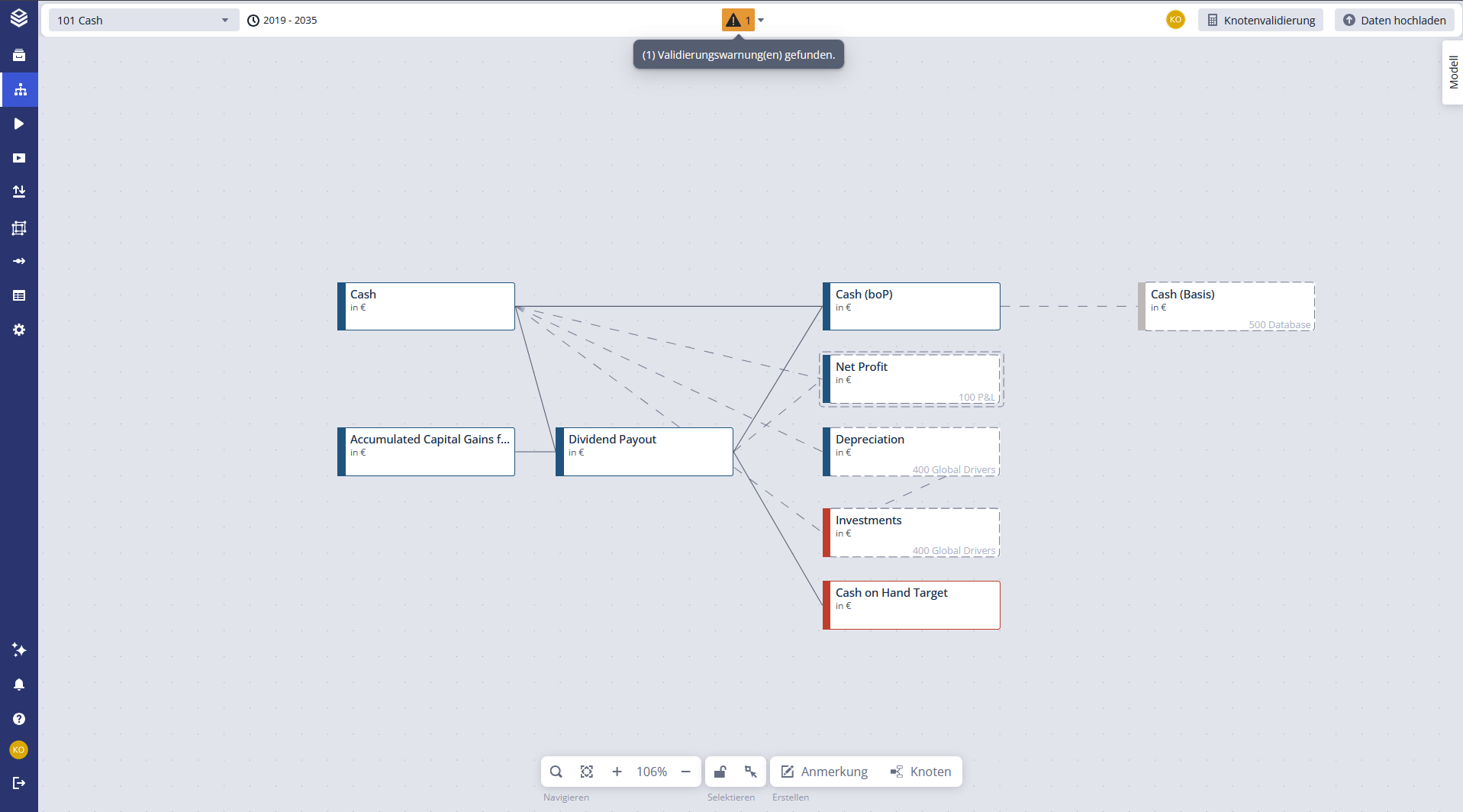
The validation icon in the header updates to reflect the current state.
Validation states
The validation icon has three possible states:
Symbol | Status | Meaning |
|---|---|---|
 | Valid | The model, its syntax, and all connected base data are working correctly. |
 | Invalid | The model or connected base data has issues. Click the icon to see details. |
 | Out of date | Changes have been made since the last validation. Only shown when validation is set to manual. |
Automatic vs. manual validation
Validation can run automatically after each change, or manually on demand. When set to manual, the "out of date" indicator reminds you to re-validate after making changes.
Showing warnings directly on nodes
By default, validation results are only visible in the centralized validation panel. You can optionally display warning icons directly on affected nodes in the canvas, so you can spot issues in context without switching views.
Setup:
Open the Model tab in the Context Panel (top-right corner).
Activate the Show Validations toggle under the Node Display section.
When enabled, a warning icon  appears in the top-right corner of any node that has validation warnings. Click the icon to see the details for that node.
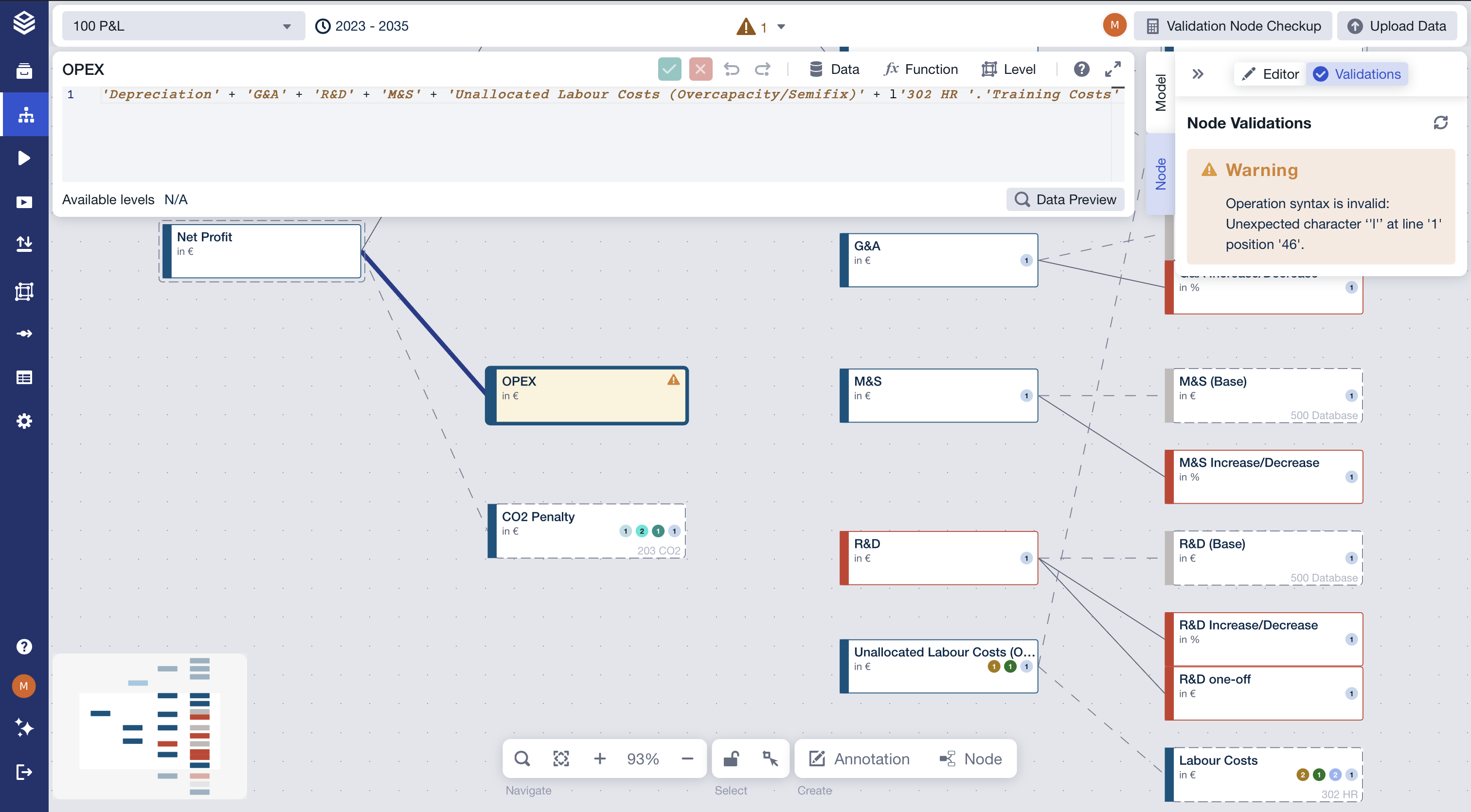
This setting is saved per user and project view. Other users control their own visibility independently.
FAQ
What does model validation check?
Syntax correctness, node reference resolution, and compatibility between formulas and connected base data.
Does model validation check whether results are correct?
No. It checks structure and syntax only. Use Validation Nodes to check result correctness.
What should I do when validation fails?
Click the validation icon to see which nodes have issues. Fix the reported errors and re-validate. If the issue is in your base data, see Data & Dimension Validation.
Related documentation
Data & Dimension Validation: check uploaded data and dimension compliance
Validation Nodes: add custom result checks to your model
Troubleshooting guide: diagnose empty results, wrong shape, and wrong numbers
Model Editor UI: full overview of the Model Editor layout