
Validation Nodes
Validation nodes let you define custom conditions inside your model that flag deviations during validation checks.
Overview
Standard model validation checks syntax and data compatibility, but it cannot detect logically incorrect results. Validation nodes fill this gap: they are a special node type that defines conditions your results must satisfy. When a condition fails, the validation reports it.
When to use it
When formulas can produce results that are technically valid but logically wrong (e.g. negative volumes, margins exceeding 100%)
When you want automated checks for business rules that model validation cannot catch
How it works
Validation nodes work like regular nodes but serve a specific purpose: their result is interpreted as a pass/fail signal during validation.
A result of 0 (or all zeros): the check passes (no issues).
A result other than 0: the check fails (the non-zero value indicates the deviation).
You can use any formula logic to express the condition. Common patterns use IF, MIN, MAX and Comparisons & boolean operators
Adding a validation node
Open your model in the Model Editor.
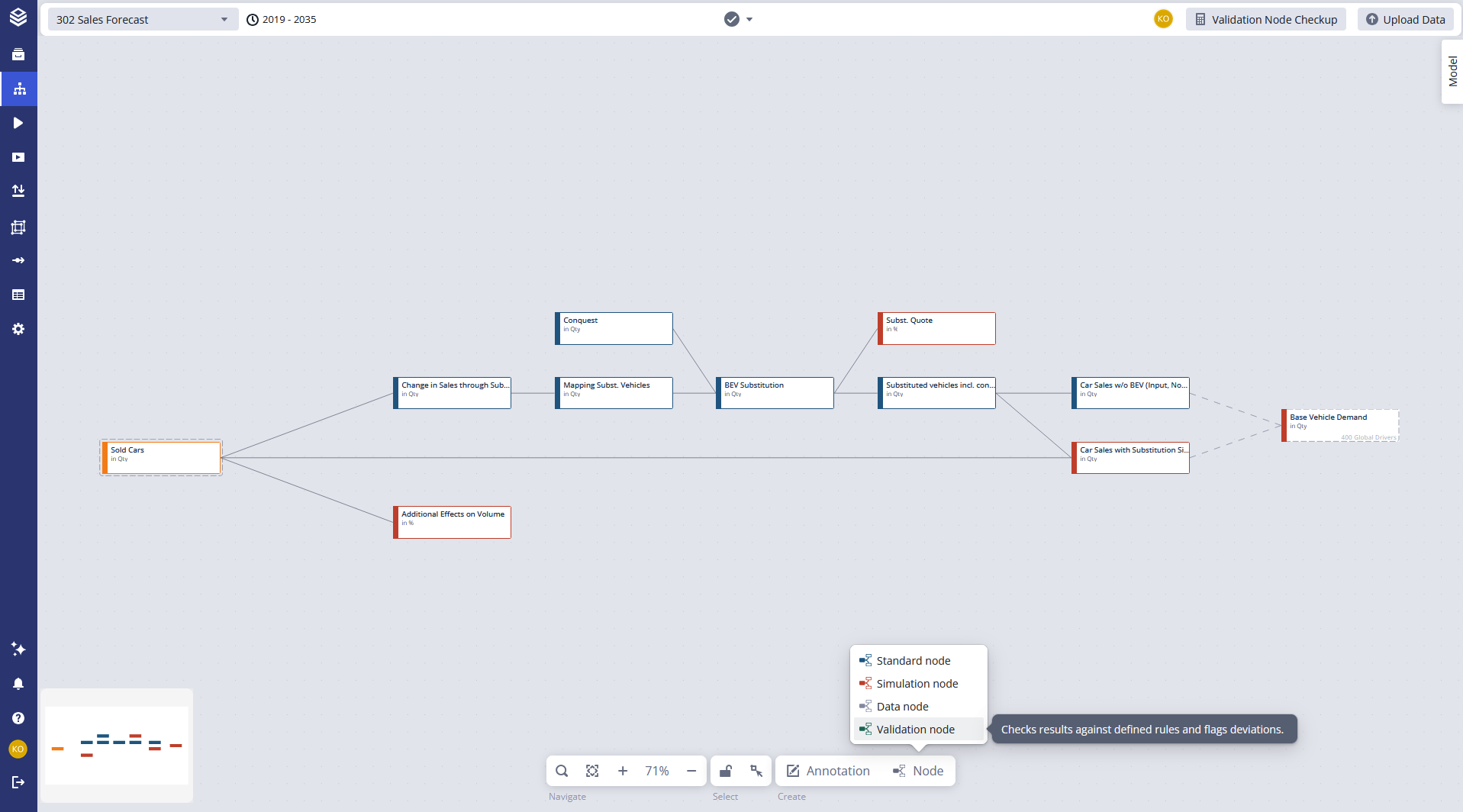
Click Add Node in the action bar.
Select Validation Node from the node type menu.
Name the node and define its formula.
Common patterns
Check that a value is never negative
Node | Formula | Logic |
|---|---|---|
PositiveVolume |
| Returns 0 when volume is non-negative (passes). Returns the actual volume when negative (fails and shows the deviation). |
PositiveVolume |
| Equivalent shorthand. Returns 0 when volume is positive, returns the negative value otherwise. |
Ensure a value stays within a range
Use IF with combined conditions to check a lower and upper bound at the same time.
Node | Formula | Logic |
|---|---|---|
DiscountInRange |
| Returns 0 when the discount rate is between 0% and 50% (passes). Returns the actual value when outside that range (fails). |
Flag values that should never be zero
Use IF to detect zeros where a positive value is expected.
Node | Formula | Logic |
|---|---|---|
NonZeroHeadcount |
| Returns 0 where headcount is non-zero (passes). Returns 1 where headcount is zero (fails). |
Combine multiple conditions
Use AND, OR to check several rules in one validation node.
Node | Formula | Logic |
|---|---|---|
RevenueConsistency |
| Returns 0 when both revenue and volume are positive (passes). Returns 1 when either is zero or negative (fails). |
Running validation node checks
You can evaluate validation nodes in two ways:
From the Model Editor:
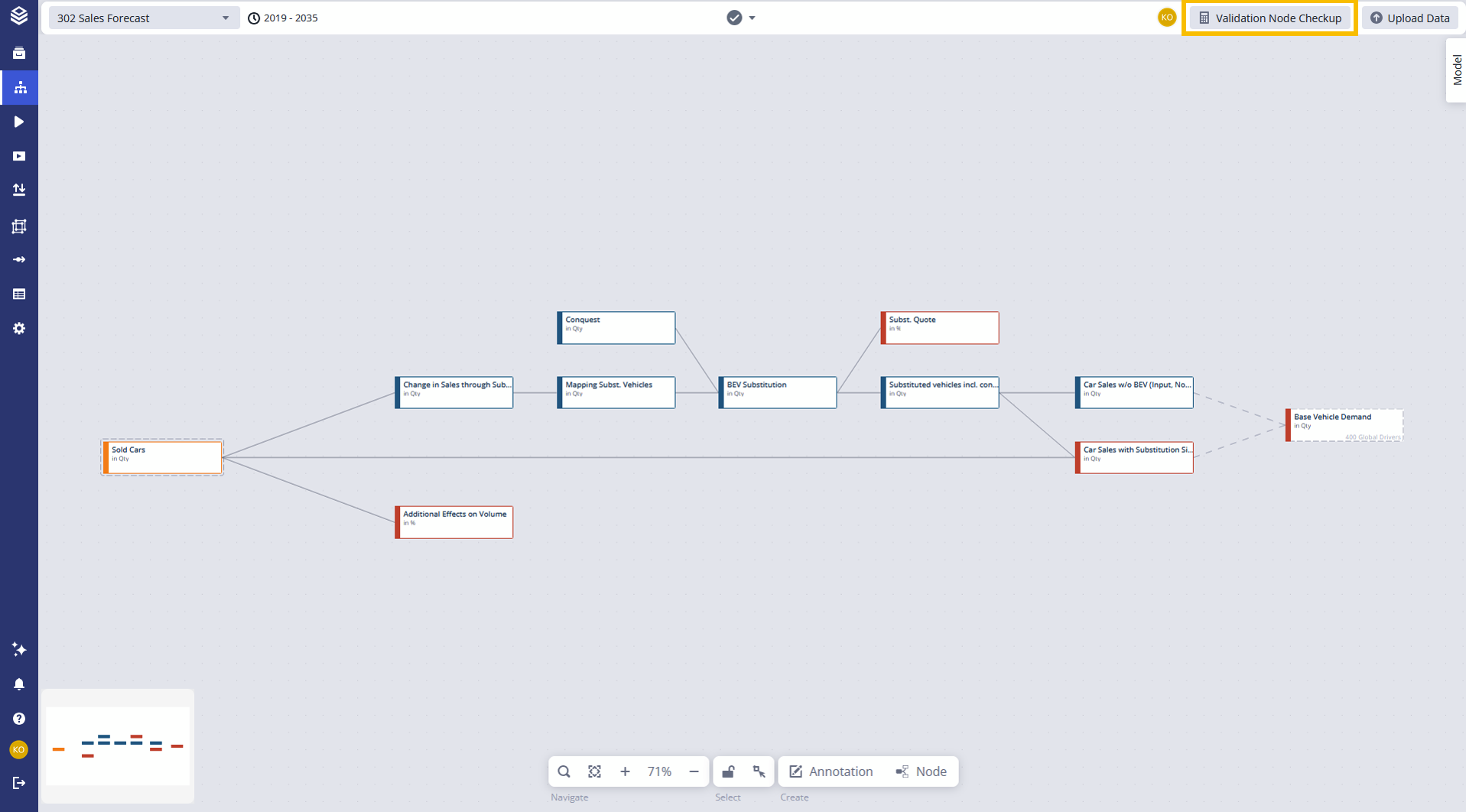
Click the Validation Node Checkup button in the header bar. This runs all validation nodes against the current model state.
From a Workspace:
Validation nodes are also evaluated automatically during Workspace Validation, which checks conditions across all active scenarios.
Limitations & edge cases
Validation nodes only check results. They do not change calculations or outputs of other nodes.
The pass/fail signal is based on the numeric result: zero passes, non-zero fails. Design your formula accordingly.
Validation nodes are evaluated per intersection (every combination of dimension values), so a single validation node can flag multiple issues at different intersections.
FAQ
Do validation nodes affect model results?
No. They only check results. They do not influence the calculations of other nodes.
What is the difference between model validation and validation node checks?
Model validation checks syntax and structure. Validation node checks evaluate whether your custom conditions are met at the result level.
Can I use validation nodes without workspace validation?
Yes. You can run the Validation Node Checkup directly from the Model Editor at any time.
Related documentation
Model Validation: syntax and structure checks
Workspace Validation: evaluates validation nodes across scenarios
Expected Levels: pre-define the shape of empty nodes used as blueprints
IF, MIN, MAX, Comparisons & boolean operators: functions and operators commonly used in validation node formulas